Example workflow Libraries

How a Library Can Run Its Shelf Inventory With a Phone

Scan the item barcodes shelf by shelf, then compare the list with your catalogue export. Missing and misshelved items stand out in the spreadsheet.

This page shows how DataScan can be set up for this task. It is an illustration, not a report about a specific customer. All codes and values on it are examples.

7-Day Free Trial • iPhone, iPad & Android • Cancel Anytime
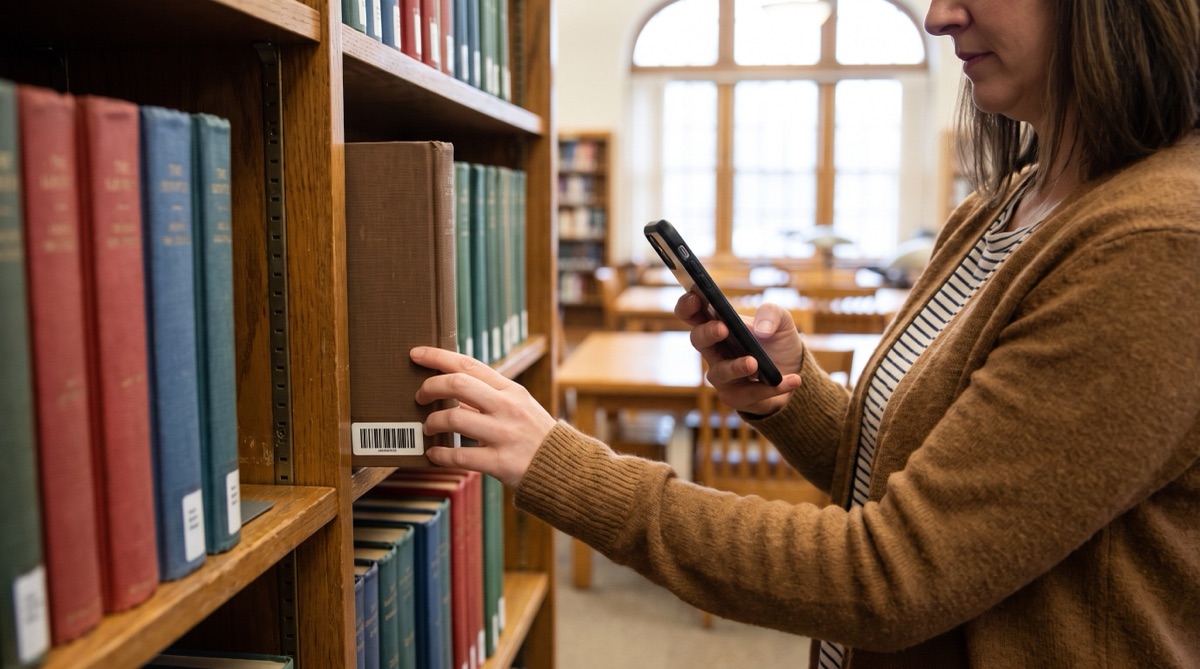
Librarian pulling a book from the shelf to scan the barcode label on its spine with an iPhone

The problem

Library catalogues slowly drift away from the shelves. Books go missing, get put back in the wrong place, or are still listed as available long after they left the building. Readers search for items that are not there, and staff spend time looking for them.

A shelf inventory fixes that, but checking every spine against a printed list is slow. That is true for a public library with a full library system as much as for a school or club library that keeps its catalogue in a spreadsheet.

Most library items already carry a barcode label, often Codabar or Code 39, and small collections can label their books in an afternoon. Scanning them in shelf order gives you a list you can compare with your catalogue.

The setup

Continuous Scan captures one barcode after another without tapping, which suits a run along a shelf. An optional lookup list adds catalogue details.

Scan mode Continuous Scan
Barcode Types The type on your item labels, usually Codabar or Code 39, so ISBN barcodes on the covers are ignored
Prevent Duplicate Scans On, so holding the camera on one spine records it once
Lookup list An export from your library system as CSV: item barcode first, title second, then call number and other columns
Enable Cross-Reference On, so the pop-up shows the title after each scan
Cross-reference with Lookup Data On, so the export includes the catalogue columns
Sort Order Scan Timestamp, so the export keeps shelf order

Step by step

  1. Export the item list From your library system or catalogue spreadsheet, export the items of the section you want to check: barcode, title, call number and any other columns you need. Import it into Lookup Scan from a file or a URL.
  2. Scan along the shelf Open Continuous Scan and move along the shelf, spine by spine. Touch and hold to pause when you need to pull a book out. Optionally scan a printed shelf label at the start of each shelf as a marker row.
  3. Watch the pop-up The pop-up shows the title for each item found in your list. A pop-up with the barcode and no title marks an item that is missing from the exported list; set it aside to check.
  4. Export the section Export the scans by email or to Files when the section is done, then start a new scan for the next section.
  5. Compare in the spreadsheet Items in the library system's list that do not appear in any export are missing. Read down the call number column in shelf order to spot items that are out of sequence.

What you get out

Each scanned item becomes one row, in shelf order, with the catalogue columns added from the lookup list:

Column Example value What it holds
Barcode 31234000456789 The item barcode on the label
Timestamp 2026-07-08 14:21 When the item was scanned
Title The Hobbit From your lookup list; empty if the barcode is not in it
Call Number FIC TOL From your lookup list, used to spot misshelved items

The lookup columns carry the header names from your own CSV, so they match whatever your library system exports.

Fits well if…

  • Your items carry barcode labels, such as Codabar or Code 39, or you can label them.
  • Your library system or catalogue spreadsheet can export an item list as a CSV file.
  • You run a public, school, company or club library and want a regular shelf inventory without inventory hardware.
  • Someone on the team is comfortable comparing two lists in a spreadsheet.

Scan One Shelf and Compare

Export one section from your library system, scan the shelf and see what is missing. The free trial includes every feature.

7-Day Free Trial • iPhone, iPad & Android • Cancel Anytime