How to Scan Barcodes to Google Sheets
There are two reliable ways to get barcode scans into Google Sheets: export a CSV from a scanning app and import it into your sheet (File → Import → Append), or, if your team runs its own email automation, email the export to it and let that service add the rows. DataScan does the first part of both: the scan and the file. This guide walks through both ways.
When your inventory lives in a Google Sheet
Google Sheets is the de facto inventory system for a huge number of small operations: shared with the team, always backed up, free. The friction is input. Standing in a stockroom reading barcodes off boxes and thumbing them into the Sheets mobile app is slow, and the mobile keyboard is a transposition machine. The fix is to separate capture from storage: scan fast with a purpose-built app, then land the data in your sheet in one clean import — or by email to an automation you run yourself, as described below.
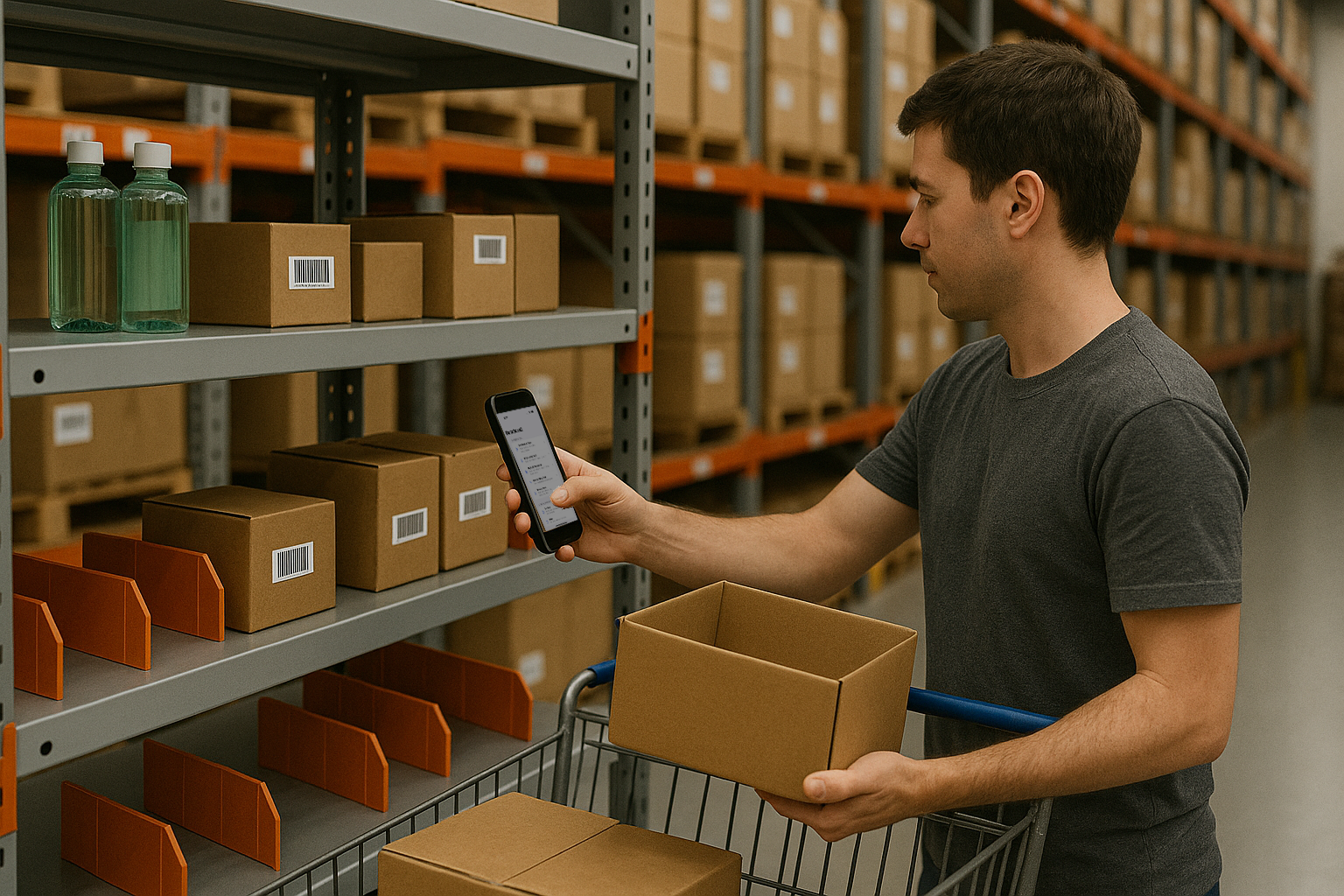
Path A: export CSV, import into Google Sheets
This is the simplest route and the right one for periodic work — counts, receiving checks, audits. No accounts connected, no automation to maintain, and nothing new to learn beyond one menu in Sheets. Because the scanning happens in the app, not in the browser, it also works when the stockroom has no signal at all.
- Scan your items with a barcode app Install DataScan on your iPhone or Android phone and scan your items as a session — Continuous mode for a plain list, Single Value mode when each item needs a quantity. Scanning works fully offline, so a dead-zone stockroom is no obstacle.
- Export the session as CSV Export the finished session as a CSV file. In Settings you control the delimiter, whether headers are included, column names, and date format — set them once to mirror your sheet's columns and every future export lines up automatically.
- Import the CSV into Google Sheets Open your inventory sheet and choose File → Import → Upload. The critical setting is Import location: “Append to current sheet” — your scans are added as new rows below the existing data instead of replacing it.
- Optional: email the file to your own automation If you do this weekly or daily and already use an automation service, Path B below shows the email hand-off.
Tip: long numeric barcodes (EAN-13, UPC) should live in a column formatted as plain text in Sheets. Format the column once (Format → Number → Plain text) and imports will never mangle a barcode into scientific notation.
Path B: email the file to an automation you run
DataScan can email an export through your own SMTP server when you tap Send Email. DataScan has no Zapier or Google integration, but if your team already runs an automation service, that email can be its trigger:
- Set the destination. In DataScan's SMTP settings, set To Email to a dedicated address that your automation service watches.
- Build the automation on your side. In your automation service: trigger on the incoming email, parse the attached CSV, and map its columns to a “Create Spreadsheet Row(s)” action on your Google Sheet. This part is outside DataScan.
- Scan, then tap Send Email. Each export you send reaches the automation, which adds the rows if it is set up correctly. Check the sheet after the first few sends.
The bin replenishment example workflow uses the same email step, with the file going to a supplier instead of a sheet. If the automation service is down, you still have the email and the file — nothing is lost.
Making the automation robust
A few details separate an email automation that quietly works for years from one that breaks the first week:
- Test with a three-item session first. Scan three known barcodes, send the email, and check the sheet. It is far easier to spot a column mapped wrong across three rows than across three hundred.
- Keep headers on and stable. Include headers in the CSV export and never rename them afterwards — the automation maps by header, and a renamed column silently drops data into the wrong field.
- Standardize the date format. Set DataScan's date format to ISO (YYYY-MM-DD) so Google Sheets parses timestamps unambiguously regardless of the sheet's locale.
- Export once per location or task. One file per zone is easy to trace back when a count looks off — much easier than dissecting one giant file.
Which path should you pick?
- Monthly count or one-off audit: Path A. An occasional import does not justify an automation.
- Recurring workflow, one scanner: Path B, if you already run an automation service.
- Recurring workflow, several scanners: Path B, with everyone emailing to the same automation — the sheet becomes the merge point.
- Excel-centric team instead? The same session exports as an Excel file — see scanning barcodes into Excel.
Other options, honestly assessed
Google Sheets add-ons and Apps Script scanners run inside the browser tab: workable for scanning three items at your desk, painful for a hundred in a stockroom, and useless offline. Keyboard-wedge Bluetooth scanners can type into the Sheets mobile app, but they input into whatever cell has focus — one bumped finger and your column alignment is gone, and there is no quantity capture or timestamping. Some inventory SaaS products do offer genuine Sheets integrations — at per-seat prices and with your stock data living on their servers. The capture-then-import pattern is slightly less glamorous and considerably more robust: your data is always in a file you control, and every step can be inspected when something looks wrong. That trade is the theme of DataScan's whole file-based design.
Frequently Asked Questions
No, and we would rather tell you that plainly than pretend. DataScan is file-based: it exports CSV or Excel files that you import into Sheets. Nothing connects to your Google account, and every export is a file you started with a tap.
Use File, then Import, then Upload in Google Sheets and set "Import location" to "Append to current sheet". Google Sheets adds the CSV rows below your existing data instead of replacing it.
Yes, with the file-based pattern: each person scans on their own phone and exports their own file, and you import each file into the same sheet with Append. Identical export settings on every phone keep the columns lined up.
Use whichever fits how you work. DataScan scans in its own app, works offline in stockrooms and basements, captures quantities and notes per item, and gives Sheets a structured CSV file afterwards.