كيفية مسح الباركود إلى Google Sheets
هناك طريقتان موثوقتان لنقل عمليات مسح الباركود إلى Google Sheets: تصدير ملف CSV من تطبيق مسح واستيراده إلى ورقتك (ملف → استيراد → إلحاق)، أو، إذا كان فريقك يشغّل أتمتة البريد الإلكتروني الخاصة به، إرسال ملف التصدير إليها بالبريد وترك تلك الخدمة تضيف الصفوف. يتولّى DataScan الجزء الأول من الطريقتين: المسح والملف. وهذا الدليل يشرح الطريقتين كلتيهما.
عندما يكون مخزونك في ورقة Google Sheets
يُعدّ Google Sheets نظام المخزون الفعلي لعدد هائل من العمليات الصغيرة: مشترَك مع الفريق، ومنسوخ احتياطيًا دائمًا، ومجاني. الاحتكاك يكمن في الإدخال. فالوقوف في مخزن وقراءة الباركود من الصناديق وكتابته في تطبيق Sheets للهواتف عمل بطيء، ولوحة مفاتيح الهاتف آلة لتبديل الأرقام. الحلّ هو فصل الالتقاط عن التخزين: امسح بسرعة بتطبيق مصمَّم لهذا الغرض، ثم أنزِل البيانات في ورقتك باستيراد واحد نظيف — أو بالبريد الإلكتروني إلى أتمتة تشغّلها بنفسك، كما هو موضّح أدناه.
المسار (أ): تصدير CSV واستيراده إلى Google Sheets
هذا أبسط مسار وهو الصحيح للأعمال الدورية — عمليات العدّ وفحوصات الاستلام والتدقيق. لا حسابات مرتبطة، ولا أتمتة تحتاج إلى صيانة، ولا شيء جديد تتعلّمه سوى قائمة واحدة في Sheets. ولأن المسح يجري في التطبيق لا في المتصفّح، فهو يعمل أيضًا عندما لا توجد أي إشارة في المخزن.
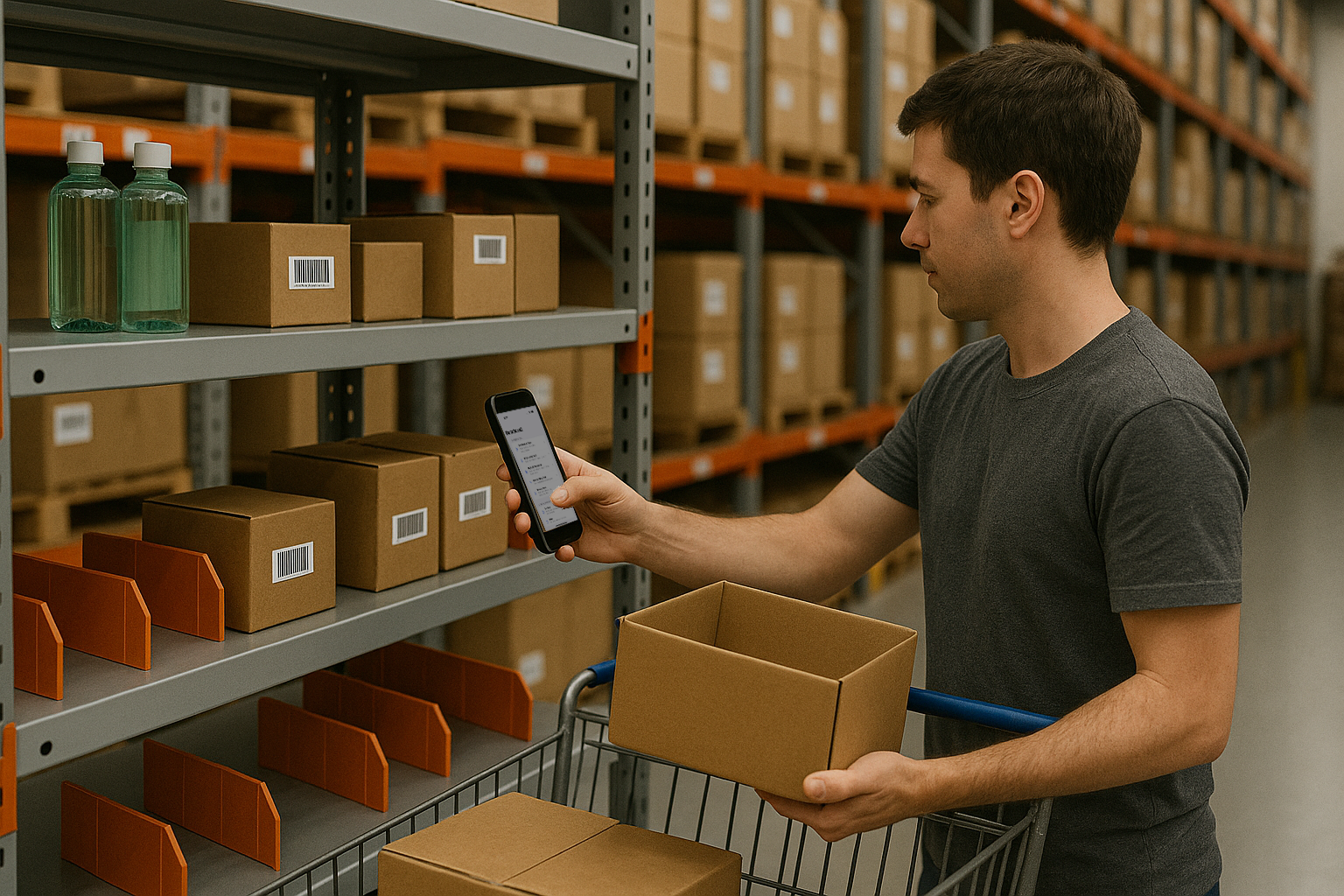
- امسح أصنافك بتطبيق باركود ثبّت DataScan على هاتف iPhone أو Android وامسح أصنافك كجلسة — وضع المسح المستمر لقائمة بسيطة، ووضع مسح قيمة واحدة عندما يحتاج كل صنف إلى كمية. يعمل المسح بالكامل دون اتصال بالإنترنت، لذا لا يشكّل مخزن بلا تغطية أي عائق.
- صدّر الجلسة بصيغة CSV صدّر الجلسة المكتملة كملف CSV. في الإعدادات تتحكّم في الفاصل، وفيما إذا كانت الترويسات مضمَّنة، وأسماء الأعمدة، وصيغة التاريخ — اضبطها مرة واحدة لتعكس أعمدة ورقتك وستتطابق كل عمليات التصدير المستقبلية تلقائيًا.
- استورِد ملف CSV إلى Google Sheets افتح ورقة المخزون واختر ملف → استيراد → رفع. الإعداد الحاسم هو موقع الاستيراد: “إلحاق بالورقة الحالية” — عندها تُضاف عمليات المسح كصفوف جديدة أسفل البيانات الحالية بدلًا من استبدالها.
- اختياري: أرسِل الملف بالبريد الإلكتروني إلى أتمتتك الخاصة إذا كنت تفعل ذلك أسبوعيًا أو يوميًا وتستخدم بالفعل خدمة أتمتة، فإن المسار (ب) أدناه يشرح التسليم عبر البريد الإلكتروني.
نصيحة: ينبغي أن تكون أرقام الباركود الطويلة (EAN-13 وUPC) في عمود منسَّق كنصّ عادي في Sheets. نسّق العمود مرة واحدة (تنسيق → رقم → نصّ عادي) ولن تحوّل عمليات الاستيراد أي باركود إلى صيغة علمية أبدًا.
المسار (ب): أرسِل الملف بالبريد الإلكتروني إلى أتمتة تشغّلها بنفسك
يستطيع DataScan إرسال ملف تصدير بالبريد الإلكتروني عبر خادم SMTP الخاص بك عندما تضغط على «إرسال بريد إلكتروني». لا يملك DataScan أي تكامل مع Zapier أو Google، لكن إذا كان فريقك يشغّل بالفعل خدمة أتمتة، فيمكن لهذه الرسالة أن تكون المُحفِّز لها:
- حدّد الوجهة. في إعدادات SMTP في DataScan، اضبط «إلى البريد الإلكتروني» على عنوان مخصّص تراقبه خدمة الأتمتة لديك.
- ابنِ الأتمتة من جهتك. في خدمة الأتمتة لديك: اجعل المُحفِّز هو البريد الوارد، وحلّل ملف CSV المرفق، وطابِق أعمدته مع إجراء “إنشاء صفّ/صفوف في جدول بيانات” على ورقة Google Sheets. هذا الجزء خارج DataScan.
- امسح، ثم اضغط على «إرسال بريد إلكتروني». يصل كل ملف تصدير ترسله إلى الأتمتة، فتضيف الصفوف إذا كانت مُعدّة بشكل صحيح. تحقّق من الورقة بعد أول بضع عمليات إرسال.
يستخدم مثال سير عمل إعادة تعبئة الصناديق خطوة البريد الإلكتروني نفسها، مع إرسال الملف إلى مورّد بدلًا من ورقة. وإذا تعطّلت خدمة الأتمتة، يبقى لديك البريد الإلكتروني والملف — ولا يضيع شيء.
جعل الأتمتة متينة
بضعة تفاصيل تفصل بين أتمتة بريد إلكتروني تعمل بهدوء لسنوات وآخر ينهار في الأسبوع الأول:
- اختبِر أولًا بجلسة من ثلاثة أصناف. امسح ثلاثة أرقام باركود معروفة، وأرسل البريد، وتحقّق من الورقة. فاكتشاف عمود مطابَق خطأً عبر ثلاثة صفوف أسهل بكثير من اكتشافه عبر ثلاثمئة.
- أبقِ الترويسات مفعّلة وثابتة. ضمّن الترويسات في تصدير CSV ولا تُعِد تسميتها بعد ذلك أبدًا — فالأتمتة تطابق حسب الترويسة، وإعادة تسمية عمود تُسقِط البيانات بصمت في الحقل الخاطئ.
- وحّد صيغة التاريخ. اضبط صيغة التاريخ في DataScan على المعيار الدولي (YYYY-MM-DD) ليحلّل Google Sheets الطوابع الزمنية بلا لَبس بغضّ النظر عن إعدادات لغة الورقة.
- صدّر مرة واحدة لكل موقع أو مهمة. ملف واحد لكل منطقة يسهل تتبّعه للخلف عندما تبدو نتيجة عدّ ما غير صحيحة — وهذا أسهل بكثير من تشريح ملف ضخم واحد.
أي مسار ينبغي أن تختار؟
- عدّ شهري أو تدقيق لمرة واحدة: المسار (أ). الاستيراد العرَضي لا يبرّر إنشاء أتمتة.
- سير عمل متكرّر بماسح واحد: المسار (ب)، إذا كنت تشغّل بالفعل خدمة أتمتة.
- سير عمل متكرّر بعدة ماسحين: المسار (ب)، مع إرسال الجميع إلى الأتمتة نفسها — فتصبح الورقة نقطة الدمج.
- فريق يعتمد على Excel بدلًا من ذلك؟ تُصدَّر الجلسة نفسها كملف Excel — راجع مسح الباركود إلى Excel.
خيارات أخرى، بتقييم صادق
تعمل إضافات Google Sheets وماسحات Apps Script داخل علامة تبويب المتصفّح: مقبولة لمسح ثلاثة أصناف من مكتبك، ومؤلمة لمئة صنف في مخزن، وعديمة الفائدة دون اتصال. أما ماسحات Bluetooth العاملة بتقنية لوحة المفاتيح فتستطيع الكتابة في تطبيق Sheets للهواتف، لكنها تُدخل البيانات في أي خلية نشطة — ولمسة إصبع واحدة تُفسد محاذاة أعمدتك، ولا يوجد التقاط للكميات ولا طوابع زمنية. وتقدّم بعض منتجات المخزون السحابية تكاملًا حقيقيًا مع Sheets — بأسعار تُحتسب لكل مستخدم ومع بقاء بيانات مخزونك على خوادمها. أما نمط الالتقاط ثم الاستيراد فهو أقل بريقًا بقليل وأكثر متانة بكثير: بياناتك دائمًا في ملف تتحكّم فيه، ويمكن فحص كل خطوة عندما يبدو شيء ما غير صحيح. وهذه المقايضة هي جوهر التصميم القائم على الملفات في DataScan بأكمله.
الأسئلة الشائعة
لا، ونفضّل أن نقول ذلك بوضوح بدل التظاهر. يعمل DataScan بنظام الملفات: يصدّر ملفات CSV أو Excel تستورِدها إلى Sheets. لا يتّصل أي شيء بحساب Google الخاص بك، وكل عملية تصدير هي ملف بدأته أنت بضغطة.
استخدم ملف، ثم استيراد، ثم رفع في Google Sheets واضبط "موقع الاستيراد" على "إلحاق بالورقة الحالية". عندئذٍ يضيف Google Sheets صفوف ملف CSV أسفل بياناتك الحالية بدلًا من استبدالها.
نعم، باتّباع النمط القائم على الملفات: يمسح كل شخص على هاتفه ويصدّر ملفه الخاص، ثم تستورِد أنت كل ملف إلى الورقة نفسها بخيار الإلحاق. وتُبقي إعدادات التصدير المتطابقة على كل هاتف الأعمدة متّسقة.
استخدم ما يناسب طريقة عملك. يمسح DataScan داخل تطبيقه الخاص، ويعمل دون اتصال في المخازن والأقبية، ويلتقط الكميات والملاحظات لكل صنف، ويسلّم Sheets ملف CSV منظَّمًا بعد ذلك.