How to Scan Barcodes Into an Excel Spreadsheet
The fastest way to scan barcodes into an Excel spreadsheet is a phone app that captures scans as structured rows and exports them as an .xlsx or CSV file. With DataScan you scan each item with the camera, add a quantity if you need one, and export a file that opens directly in Excel — one row per scan, with barcode, quantity, and timestamp in their own columns.
Why typing barcodes into Excel doesn't scale
Most inventory lists, order sheets, and asset registers already live in Excel. The weak link is getting data in: reading a 13-digit EAN off a label and typing it into a cell takes about ten seconds per item and invites transposed digits. At 300 items that is an hour of error-prone typing — and a single wrong digit means a lookup that silently fails later.
A phone camera reads the same barcode in well under a second and never transposes digits. The point of a barcode-to-Excel workflow is not just speed; it is that every value in the spreadsheet is exactly what was printed on the label.
Scan barcodes into Excel with your iPhone or Android phone: step by step
- Install a barcode-to-Excel app Install DataScan on your iPhone or Android phone. Every feature is available during the 7-day free trial, so you can test your full workflow — including the export — before paying anything.
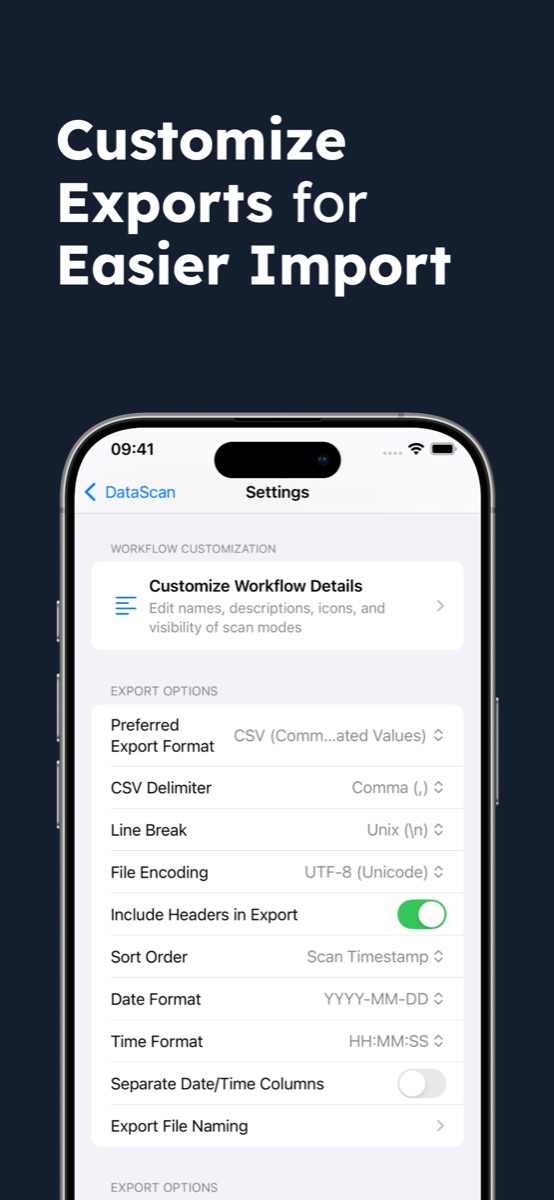
- Set up your export columns In Settings, choose your preferred export format (Excel or CSV), rename the barcode column header to match the column name your spreadsheet expects, and pick date and time formats. You can also choose whether date and time land in one column or two. Getting the headers right once means zero cleanup on every export after that.
- Pick a scan mode For a plain list of barcodes, use Continuous Scan — it captures one row per scan as fast as you can aim the camera, with a touch-and-hold pause when you need to reposition. For counting stock, use Single Value Scan: scan a barcode, type the quantity, scan the next.
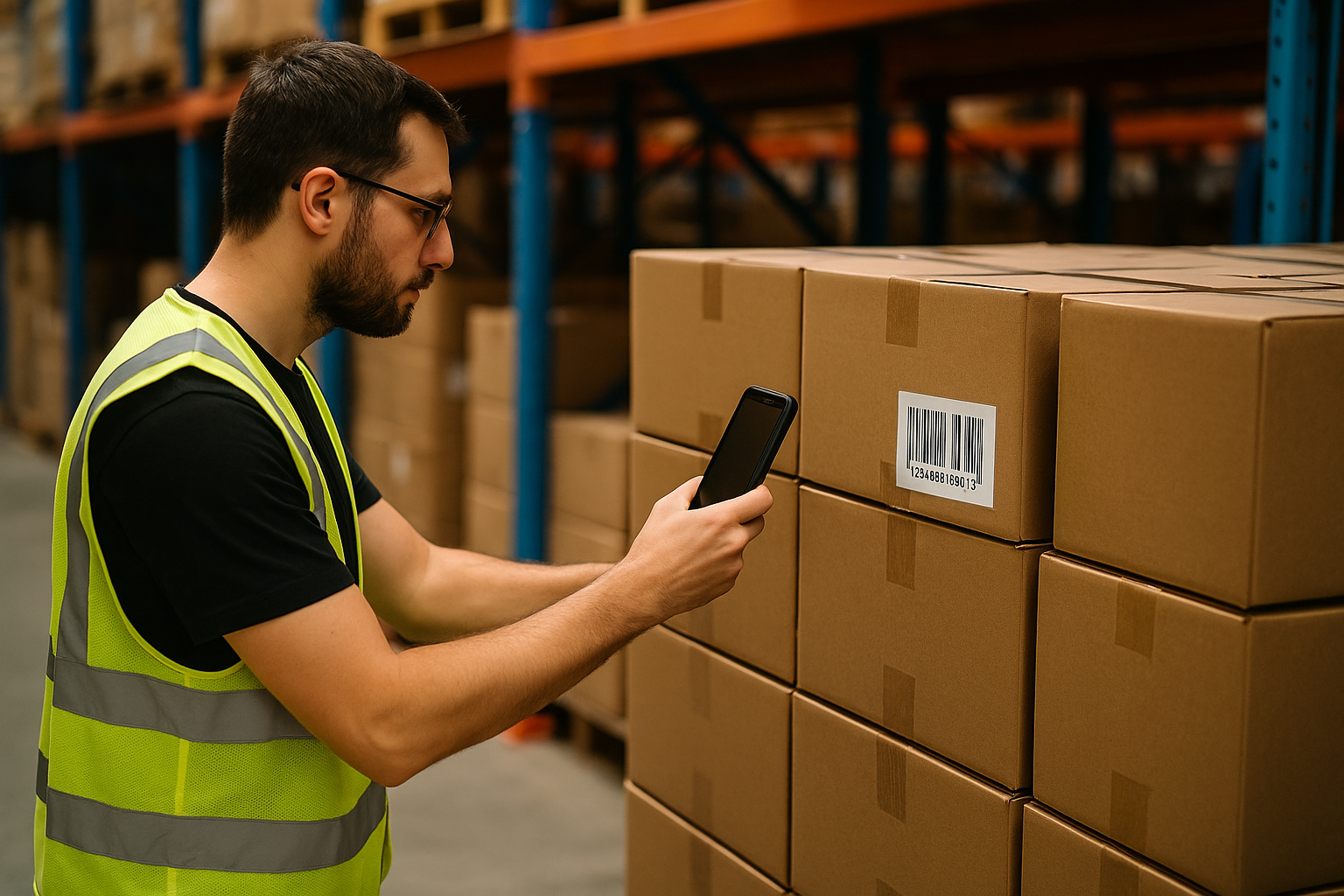
- Scan your items Work through the shelf, pallet, or stack of products. Every scan is stored locally on the phone with a timestamp, so this works in a basement stockroom with no signal just as well as on Wi-Fi.
- Review the session Open the scanned-items list to verify the count, delete accidental double scans, and confirm everything you expected is there. Thirty seconds of review saves an awkward correction after the file has been emailed around.
- Export and open in Excel Export the session and pick a delivery route: share the file to any app on your phone, email it through your own SMTP server, or upload it to an FTP/SFTP server. Open the .xlsx in Excel — or import the CSV via Data → From Text/CSV — and your scans appear as tidy rows under the headers you configured.
Excel or CSV: which export format should you use?
Both land in the same place, but they behave differently on the way. .xlsx is the safe default when a person opens the file: Excel preserves long barcode numbers as-is, columns arrive typed, and nobody has to think about delimiters. CSV is the better choice when software reads the file — an ERP import, a Power Query refresh, a script — because it is plain text and you control every detail: delimiter (comma or semicolon, which matters for European Excel versions), file encoding, line breaks, and whether headers are included.
A practical split: use .xlsx for ad-hoc counts you email to a colleague, and CSV for anything recurring that feeds an existing workbook or system. DataScan remembers the settings either way, so this is a one-time decision per workflow, not a per-export chore.
Tips for a clean barcode-to-Excel workflow
- Match headers to your master sheet. If your workbook expects a column called SKU, rename the barcode column header in the app before you export. Copy-paste then lines up without any column shuffling.
- Use one session per location. Scan aisle 3 as one session, aisle 4 as the next. Small, named exports are much easier to reconcile than one 2,000-row file — and the file naming options keep the exports sorted.
- Let timestamps do the audit work. Every row carries a scan timestamp, so you can prove when a count happened and sort out which of two conflicting counts is newer.
- Deduplicate deliberately. Decide up front whether a double scan should mean quantity 2 or a mistake. For counts, prefer Single Value mode and enter quantities; DataScan can also summarize or prevent duplicate scans depending on the workflow you configure.
Pitfall: opening a CSV of long numeric barcodes by double-clicking can make Excel display them in scientific notation (like 4,00297E+12). Import via Data → From Text/CSV and set the barcode column to Text — or simply export as .xlsx and skip the problem.
Other ways to get barcodes into Excel
Honest alternatives: a USB or Bluetooth keyboard-wedge scanner types each scan into whatever cell your cursor is in. That is great at a fixed desk and needs no export step, but it captures only the bare barcode — no quantity prompt, no timestamps, no notes — and it ties you to the computer. Excel's own mobile app has a camera-based data feature, but it is built for capturing printed tables, not for high-volume barcode work. A phone app wins when you are moving through a stockroom, need structured columns, or want quantities captured at the shelf — which is exactly how a wine retailer builds supplier orders by scanning bottles instead of typing SKUs.
Working in Google's ecosystem instead? The same session exports also feed a spreadsheet in Drive — see the companion guide on scanning barcodes to Google Sheets, or start from the DataScan homepage for an overview of all five scan modes.
Frequently Asked Questions
Not into a specific cell of an open workbook — DataScan exports a clean .xlsx or CSV file of your scan session, which you then open or paste into your existing spreadsheet. If you need scans typed directly into whatever cell is selected, a Bluetooth keyboard-wedge scanner does that, but you give up quantities, timestamps, and structured columns.
Use Single Value Scan mode: scan the barcode, type the quantity, and move on. The export contains one row per item with its barcode, quantity, and timestamp — ready for a pivot table or VLOOKUP.
DataScan reads 13 symbologies, including EAN-13 and UPC-A retail barcodes, Code 128 and Code 39 logistics labels, ITF, Codabar, PDF417, and 2D codes like QR, Data Matrix, and Aztec.
Yes. All scans are stored on the phone, so you can scan an entire warehouse offline. You only need a connection when you email or upload the export — or none at all if you transfer the file locally.