Example workflow Education

How a School Can Collect Student Chromebooks and iPads at Year End

Scan the charging cart, then each device that goes into it. The phone shows whose device it is, and comparing the export with your device list shows which devices are still out.

This page shows how DataScan can be set up for this task. It is an illustration, not a report about a specific customer. All codes and values on it are examples.

7-Day Free Trial • iPhone, iPad & Android • Cancel Anytime
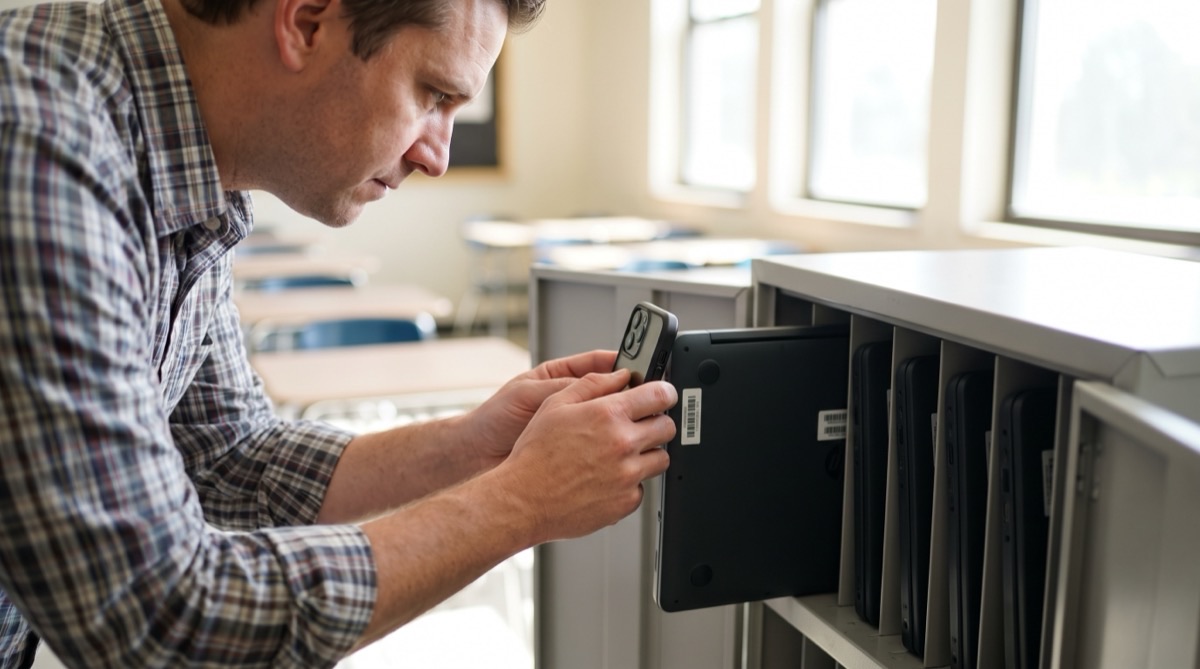
School IT staff member scanning the barcode asset tag on a laptop in a charging cart with an iPhone

The problem

At the end of the school year, hundreds of student devices come back within a few days. They arrive in waves, class by class, often handed in by students who are already thinking about the holidays. Ticking them off on a printed list is slow, and the list is rarely complete when it is needed.

The questions afterwards are always the same: which devices are back, which cart is each one in, and who still has one at home? Each device already has an asset tag or a serial number barcode. Scanning it on the way into the cart answers those questions without typing.

The setup

One-to-Many Scan links every device to the cart it goes into. The school's device list, imported in Lookup Scan, adds the assigned student and class to the export; on iPhone and iPad, a pop-up also shows the student after each scan.

Scan mode One-to-Many Scan, sub-mode One-to-Many (Groups)
Primary and Secondary Barcode Label Cart and Device
Primary and Secondary Column Header Cart and Device
Lookup data Device list as a comma-separated CSV: asset tag first, then Student, Class, Serial
Enable Cross-Reference On: on iPhone and iPad, a pop-up shows the student name from the second CSV column after each device scan
Cross-reference with Lookup Data On, so Student, Class and Serial are added to the export
Labels One printed code per cart (CART-01, CART-02, …); devices keep their existing asset tags
Barcode Types The types on your carts and asset tags, for example Code 128 and QR

Step by step

  1. Import the device list Export the device assignments from your device management or inventory spreadsheet as CSV, asset tag first and student name second, and import it in Lookup Scan on every phone used for collection.
  2. Scan the cart Open One-to-Many Scan and scan the code on the cart that is being filled.
  3. Scan each device as it goes in Each scan links the device to the cart, and the export adds the student and class from the device list. On iPhone and iPad, a pop-up also shows the student right after the scan, so you can check the device on the spot.
  4. Move to the next cart When a cart is full, tap New Cart and scan the next cart's code.
  5. Find what is missing Export the session as CSV or Excel. In the spreadsheet, look up each tag of the device list in the export: devices with no match are still out, and the Student and Class columns tell you whom to contact.

What you get out

Each device scanned into a cart becomes one row, with the device list details appended:

Column Example value What it holds
Cart CART-07 The cart code scanned first
Device SD-2024-0318 The asset tag of each device placed in it
Timestamp 2026-06-24 11:32 When the device was scanned
Secondary Student Example Student From the device list, prefixed with Secondary
Secondary Class 8B Further list columns follow in CSV order

Columns with the prefix Primary follow right after Timestamp and stay empty for cart codes; delete them in the spreadsheet.

Fits well if…

  • Your student devices carry an asset tag or serial number barcode.
  • You can export the device assignments as a CSV file.
  • Devices are collected into carts, boxes or shelves that you can label.
  • You want to know quickly which devices are still out and whom they belong to.

Try It With One Cart

Import your device list, scan one cart and a few devices, and check the export. The free trial includes every feature.

7-Day Free Trial • iPhone, iPad & Android • Cancel Anytime