Example workflow Inventory

How a Business Can Run Its Year-End Stocktake With Phones

Give each counting team a phone and a zone. Everyone scans and types quantities, every phone exports its own file, and the files come together in one spreadsheet.

This page shows how DataScan can be set up for this task. It is an illustration, not a report about a specific customer. All codes and values on it are examples.

7-Day Free Trial • iPhone, iPad & Android • Cancel Anytime
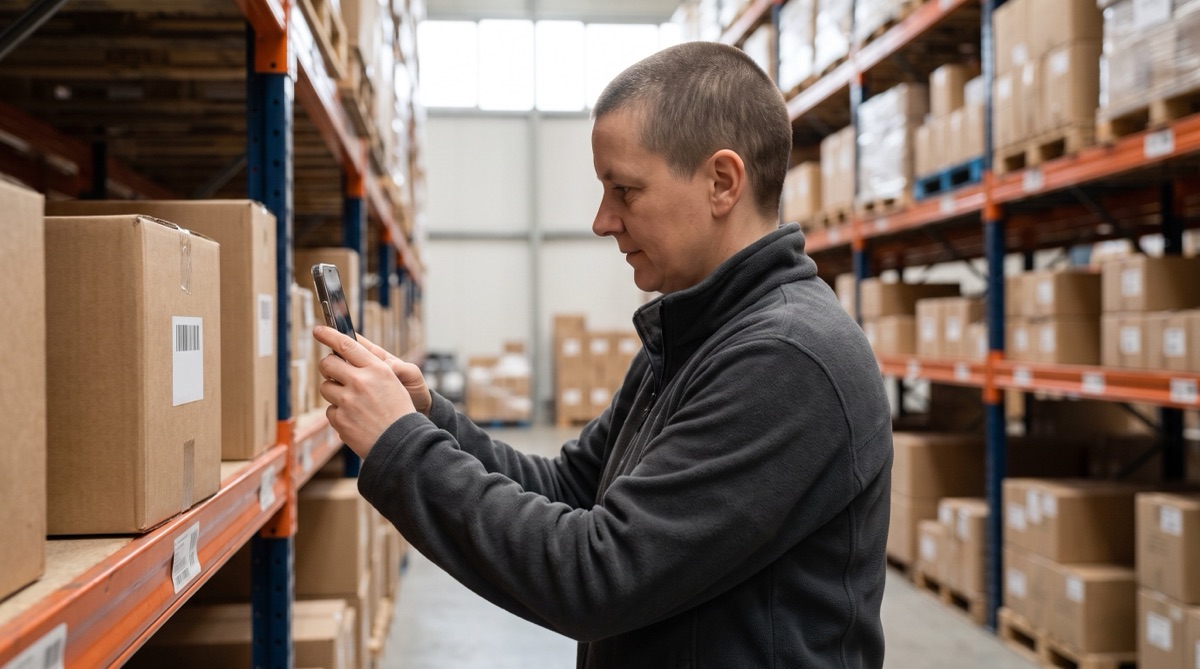
Warehouse employee scanning a carton barcode on a pallet rack with an iPhone during a year-end stocktake

The problem

At the end of the financial year, many businesses have to count everything they hold. In Germany, § 240 of the Commercial Code (HGB) requires merchants to draw up an inventory at the end of each financial year, and other countries have similar rules for their annual accounts.

The count usually happens on one or two days, with extra helpers, count sheets and a long evening of typing the results into a spreadsheet. Handwriting gets misread, sheets go missing, and numbers are typed twice or not at all.

If each counter records the barcode and quantity directly on a phone, the typing step disappears. What is left is planning the zones, counting, and combining the files.

The setup

Single Value Scan records barcode and quantity for each item. Set up one phone, then copy that configuration to all the others.

Scan mode Single Value Scan; for items you count one by one, Continuous Scan with Summarize Duplicate Scans is an alternative
Summarize Quantities On, so each product appears once per file with its total
Barcode and Total Quantity Column Header Item and Counted, or the names your accounting or inventory system expects
Export file name Different per phone, such as Stocktake_Phone3, so the files are easy to tell apart. Set it after importing the settings file, which would overwrite it
Settings file Export the configured settings as a .ds2 file and import it on every counting phone under Import/Export Settings
Export format CSV or Excel, sent to one collecting address

Step by step

  1. Plan zones and teams Draw up the zones on a floor plan and assign each one to a team with one phone. Label any items without a barcode before counting day.
  2. Configure the phones Set up one phone, export the settings file and import it on all the others under Import/Export Settings, so every file has the same columns.
  3. Count zone by zone Scan each product and type the quantity. Optionally scan a printed zone label first as a marker row. Phones work offline, so cold stores and basements are fine.
  4. Export when a zone is done Each phone sends its file to the collecting address when its zone is done, then starts a new scan for the next zone.
  5. Combine the files Paste all files into one sheet and total per barcode with a pivot table or SUMIF. Then compare with your book stock and add the item descriptions and values your accounts need.

What you get out

With Summarize Quantities on, each phone's file has one row per product:

Column Example value What it holds
Item 4012345678901 The product barcode, under the header name you chose
Counted 36.0 All quantities typed for this barcode on this phone, added up, under the header name you chose
Scan Count 3 How many times it was scanned, for example on three shelves
First Scan 2026-12-31 08:05 When it was first counted
Last Scan 2026-12-31 10:47 When it was last counted

Without summarizing, each scan is one row with barcode, quantity and timestamp, which is useful if you want to see every individual count line.

Fits well if…

  • Most of your stock carries a barcode, or you can label it before the count.
  • Several people count at the same time and you want their results as files, not paper.
  • Your inventory or accounting system can import a CSV, or you finish the stock list in a spreadsheet.
  • You count in places with poor or no signal.

Test It Before Counting Day

Count one shelf with two phones, combine the files and check the result. The free trial includes every feature.

7-Day Free Trial • iPhone, iPad & Android • Cancel Anytime