Example workflow Field Work

How to Log Inspection Rounds With Barcode Tags and Notes

Walk your round, scan each tag, type what you found. Location, GPS and weather are a tap away, and the round ends as one spreadsheet.

This page shows how DataScan can be set up for this task. It is an illustration, not a report about a specific customer. All codes and values on it are examples.

7-Day Free Trial • iPhone, iPad & Android • Cancel Anytime
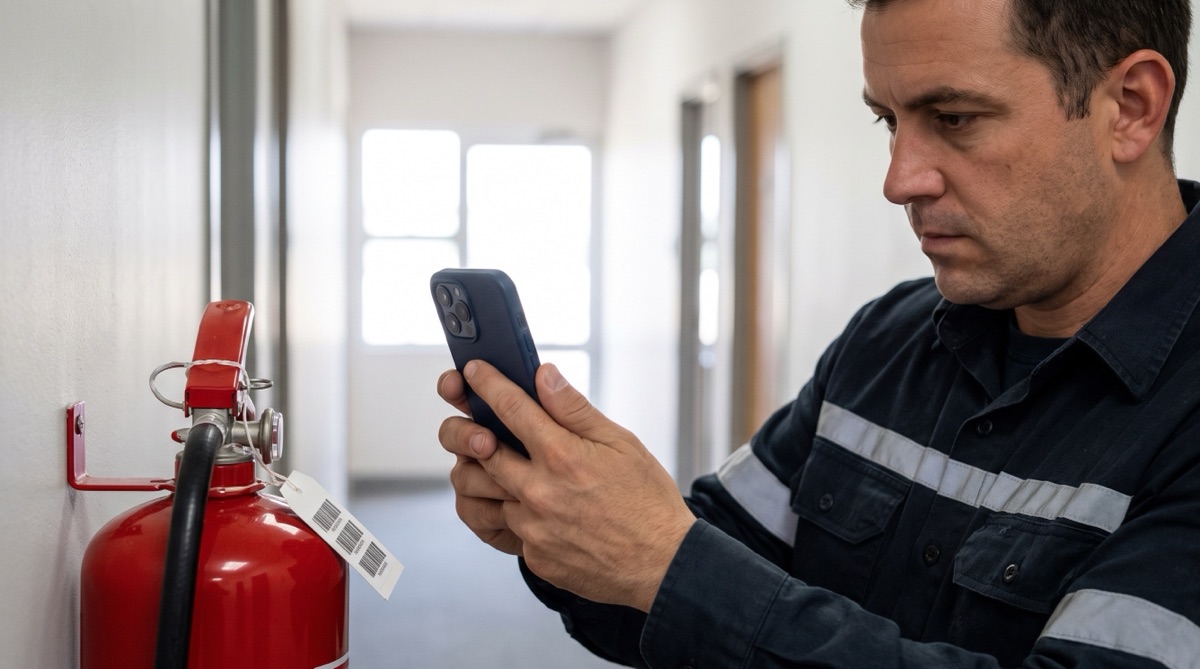
Facility technician scanning the barcode tag on a wall-mounted fire extinguisher with an iPhone

The problem

Many jobs are rounds: checking every fire extinguisher in a building, every pump on a site, every hive in an apiary. The checks themselves are quick. Writing them down is what goes wrong: a clipboard in the rain, a skipped line, a note that nobody can read later.

Afterwards someone types the clipboard into a spreadsheet, or the paper goes into a folder where nobody will find it. When a question comes up months later, which unit was checked on which day, with what remark, the answer takes a search.

A barcode tag on each item makes the round faster to record. Scan the tag, type a short note, and the time is captured with it. For outdoor rounds, GPS coordinates and the weather can be added with a tap.

The setup

Multiple Value Scan opens a short form after each scan: a note field, a Location Name that stays set, and buttons for GPS and weather.

Scan mode Multiple Value Scan, renamed to Inspection Round
Label of the notes field Findings, with a short agreed format such as OK / defect / action
Location Name The building, floor or apiary, typed once; it stays set until you change it
GPS Tapped on outdoor items such as hydrants or hives, where coordinates help to find them again
Weather Tapped where conditions matter, for example beehive checks
Tags One weatherproof QR or Code 128 label per item, with a unique ID
Separate Date/Time Columns On, so you can filter rounds by date

Step by step

  1. Tag your items Put a durable barcode or QR label with a unique ID on each extinguisher, machine or hive, and keep a list of the IDs.
  2. Start the round Open Multiple Value Scan and type the Location Name for the first building, floor or site.
  3. Scan and write the finding Scan the tag, type what you found in the note, and tap GPS or Weather for items where that helps. Submit and go to the next item.
  4. Change locations as you go Entering another building or site? Change the Location Name; the following scans carry the new name.
  5. Export the round Export the session as CSV or Excel and file it with your earlier rounds. Comparing it with your list of tag IDs shows that every item was checked.

What you get out

Each inspected item becomes one row:

Column Example value What it holds
Barcode EXT-B2-014 The item tag
Notes OK, pressure in green, seal intact Your typed finding; the export column is called Notes
Location Name Building B, 2nd floor The location you typed
Latitude 48.13743 Filled when the GPS button was tapped
Longitude 11.57549 Filled when the GPS button was tapped
Weather Partly Cloudy, 14°C Filled when the Weather button was tapped
Date 2026-03-14 Date of the scan
Time 10:12 Time of the scan

Add your asset list as lookup data with Cross-reference with Lookup Data on, and columns such as type or install date are appended to each row.

Fits well if…

  • You check the same set of items on a regular round and want a dated note per item.
  • Your items can carry a barcode or QR tag.
  • Some items are outdoors, where GPS coordinates or the weather add useful context.
  • You keep your round records as spreadsheet files.

Try It on Your Next Round

Tag a few items, walk a short round, and look at the export. The free trial includes every feature.

7-Day Free Trial • iPhone, iPad & Android • Cancel Anytime