Example workflow Retail

How a Store Can Run Cycle Counts Section by Section

Count one aisle or category during a quiet hour: scan each product, type the quantity on the shelf, export. Your spreadsheet shows where the stock figures and the shelf disagree.

This page shows how DataScan can be set up for this task. It is an illustration, not a report about a specific customer. All codes and values on it are examples.

7-Day Free Trial • iPhone, iPad & Android • Cancel Anytime
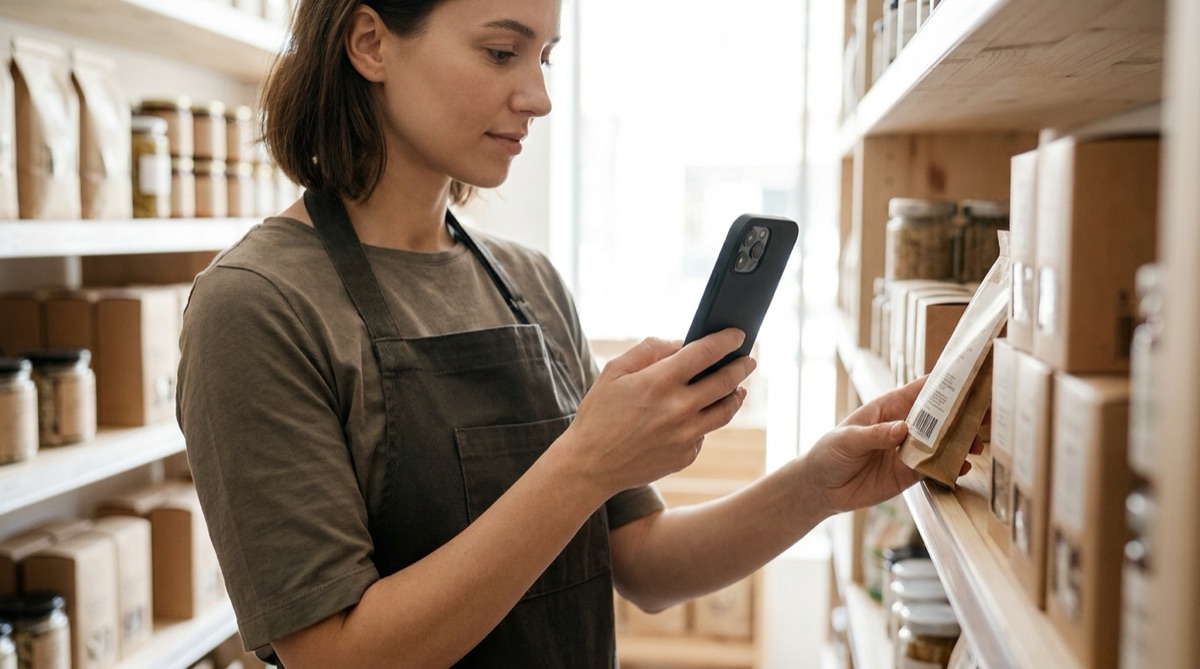
Retail manager scanning products for cycle count inventory

The problem

A once-a-year full count means closing the store or counting through the night, and it tells you that stock figures are wrong long after the reason has gone cold. Between counts, the numbers in your point-of-sale system drift with every unrecorded breakage, mis-scan at the till and receiving mistake.

Cycle counting spreads the work out: count one section at a time, often, and correct the figures as you go. The hard part is the counting itself. Clipboards and handwritten tallies have to be typed in afterwards, and that second step is where many counts stall.

If staff can scan a product and type the shelf quantity in one motion, a section count fits into a slow half hour, and the result arrives as a file you can put next to your system's stock list.

The setup

Single Value Scan records a barcode plus a typed quantity for each item, which is exactly what a shelf count needs.

Scan mode Single Value Scan
Quantity Input Label Shelf Qty
Barcode Column Header EAN, or whatever name your point-of-sale export uses for the barcode
Summarize Quantities On, so a product found in two places in the section is added up into one row
Barcode Types EAN-13, EAN-8, UPC-A and UPC-E for retail packaging, plus Code 128 if you print your own shelf labels
Export format CSV or Excel, sorted by barcode

Step by step

  1. Split the store into sections Divide the sales floor and stockroom into sections one person can count in 15 to 30 minutes, and plan a rotation so every section comes up regularly.
  2. Pull the expected stock Just before counting, export the expected quantities for that section from your point-of-sale or inventory system: barcode and quantity per product.
  3. Scan and type the shelf quantity Open Single Value Scan, scan each product and type the number in front of you. The scan list shows the item count and a running total, so you can see progress.
  4. Export the count Send the file to yourself by email or save it to Files. With Summarize Quantities on, each product appears once with its total.
  5. Compare in the spreadsheet Put the count next to the expected stock and use XLOOKUP or VLOOKUP on the barcode. If your system lists 12-digit UPC codes, first bring both barcode columns to 13 digits with =TEXT(A2,"0000000000000"), so UPC codes match whichever phone scanned them. A difference column shows which products to check again or correct in your system.

What you get out

With Summarize Quantities on, each product in the section becomes one row:

Column Example value What it holds
EAN 4006381333931 The product barcode, under the header name you chose
Total Quantity 14.0 All quantities typed for this barcode, added up
Scan Count 2 How many times the barcode was scanned, for example on two shelves
First Scan 2026-02-10 08:12 When the product was first counted
Last Scan 2026-02-10 08:31 When it was last counted

Without Summarize Quantities you get one row per scan: barcode, quantity and timestamp. The comparison with your system's figures always happens in the spreadsheet.

Fits well if…

  • Your point-of-sale or inventory system can export expected stock per barcode and import corrected quantities, or you correct them by hand.
  • Your products carry EAN or UPC barcodes, or you label them yourself.
  • You want to count a little at a time rather than close the store for a full count.
  • Your team is comfortable with a lookup formula in a spreadsheet.

Count One Section This Week

Pick a small section, count it with your phone and compare it with your stock list. The free trial includes every feature.

7-Day Free Trial • iPhone, iPad & Android • Cancel Anytime