Example workflow Food Production

How a Cheesemaker Can Track Wheels Through the Ripening Rooms

Scan the ripening section once, then every wheel you place there. The export tells you which section each wheel went into and when, and it works in a cave without signal.

This page shows how DataScan can be set up for this task. It is an illustration, not a report about a specific customer. All codes and values on it are examples.

7-Day Free Trial • iPhone, iPad & Android • Cancel Anytime
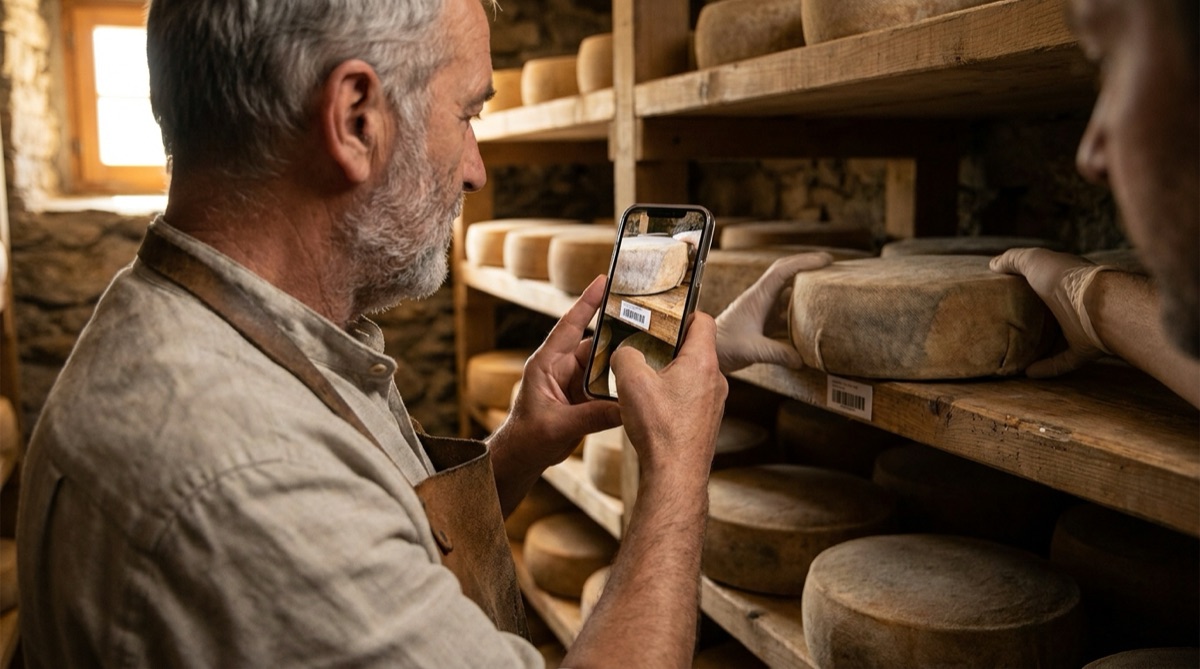
Cheesemaker scanning a ripening section barcode before scanning cheese wheels into the new location

The problem

Cheese does not sit still while it ages. Wheels start in a humid ripening section, move to a drier zone once the rind has set, and often move again for finishing. With a few hundred wheels across several sections, the questions come quickly: where is batch 2024-087 right now, and what exactly is in section D?

Paper lists hung on the racks soak up moisture, and writing down forty wheel numbers with cold, wet hands rarely happens. Moves get recorded as "B to D, about 40 wheels", which does not help when you need to find every wheel from one production day.

A barcode label on each section and each wheel, plus a phone that records every move, turns the question of where a batch is into a spreadsheet filter.

The setup

One-to-Many Scan is built for this pattern: one location barcode, followed by every item placed there. Rename the two columns so the export reads naturally.

Scan mode One-to-Many Scan, sub-mode One-to-Many (Groups)
Primary and Secondary Barcode Label Section and Wheel, so the scan screen asks for the right thing
Primary and Secondary Column Header Section and Wheel
Labels One Code 128 or QR label per ripening section (SECTION-A, SECTION-B, …) and one per wheel or batch
Barcode Types Code 128 and QR switched on, so other codes on packaging are ignored
Export format CSV or Excel, sorted by scan timestamp

Step by step

  1. Label sections and wheels Print a label for each section or shelf and laminate it, since it lives in a damp room. Label each wheel or batch with your existing batch number.
  2. Scan the destination section When wheels move, open One-to-Many Scan and scan the barcode of the section they are moving to.
  3. Scan each wheel as you rack it Every wheel you scan is linked to that section with a timestamp. Moving to a second section? Tap New Section and scan its barcode.
  4. Export from the office Scanning works offline. Back on Wi-Fi, export the session by email, to Files or by SFTP, then file it with your earlier exports.
  5. Answer questions with a filter In your spreadsheet, the latest row for a wheel shows its current section. Filtering by batch number lists every move of that batch across all the files you kept.

What you get out

Each scan becomes one row. With the renamed headers, a move of three wheels into section D looks like this:

Column Example value What it holds
Section SECTION-D The section barcode scanned first
Wheel 2024-087-03 The wheel or batch label scanned into that section
Timestamp 2026-03-14 09:42 Date and time of the wheel scan; can be split into separate Date and Time columns

Keep each exported file: together they form the movement history of every wheel.

Fits well if…

  • You move wheels or batches between rooms, sections or shelves and want each move on record.
  • Your ripening rooms have poor or no mobile signal.
  • You already use a spreadsheet for production records and want location data in the same place.
  • You can put a barcode label on each section and each wheel.

Try It on Your Next Cave Move

Label one section and a few wheels, scan a move, and look at the export. The free trial includes every feature.

7-Day Free Trial • iPhone, iPad & Android • Cancel Anytime