QR Code Event Check-In That Ends in a Spreadsheet
To run QR code check-in that ends in a spreadsheet, import your attendee list into a scanning app, scan each badge at the door, and export the session as CSV afterwards. DataScan shows the matching name from the imported guest list on the spot — offline, so bad venue Wi-Fi is irrelevant — and the export opens in Excel or imports into Google Sheets with one timestamped row per scan.
The clipboard line and the SaaS sledgehammer
Event check-in usually fails in one of two directions. The clipboard: a printed list, a highlighter, a queue that grows while a volunteer scans names with a finger — and afterwards, someone retypes the highlights into a spreadsheet. Or the sledgehammer: a full event platform with registration, payments, badge printing, and a per- attendee fee, adopted because the only thing anyone actually needed was a fast door and an attendance file.
If your registrations already live in a spreadsheet — a class roster, a member list, a mail-merge export — the missing piece is small: a scanner that knows the list, shows the name at the door, and hands the results back as a file. That is a phone-app-size problem.
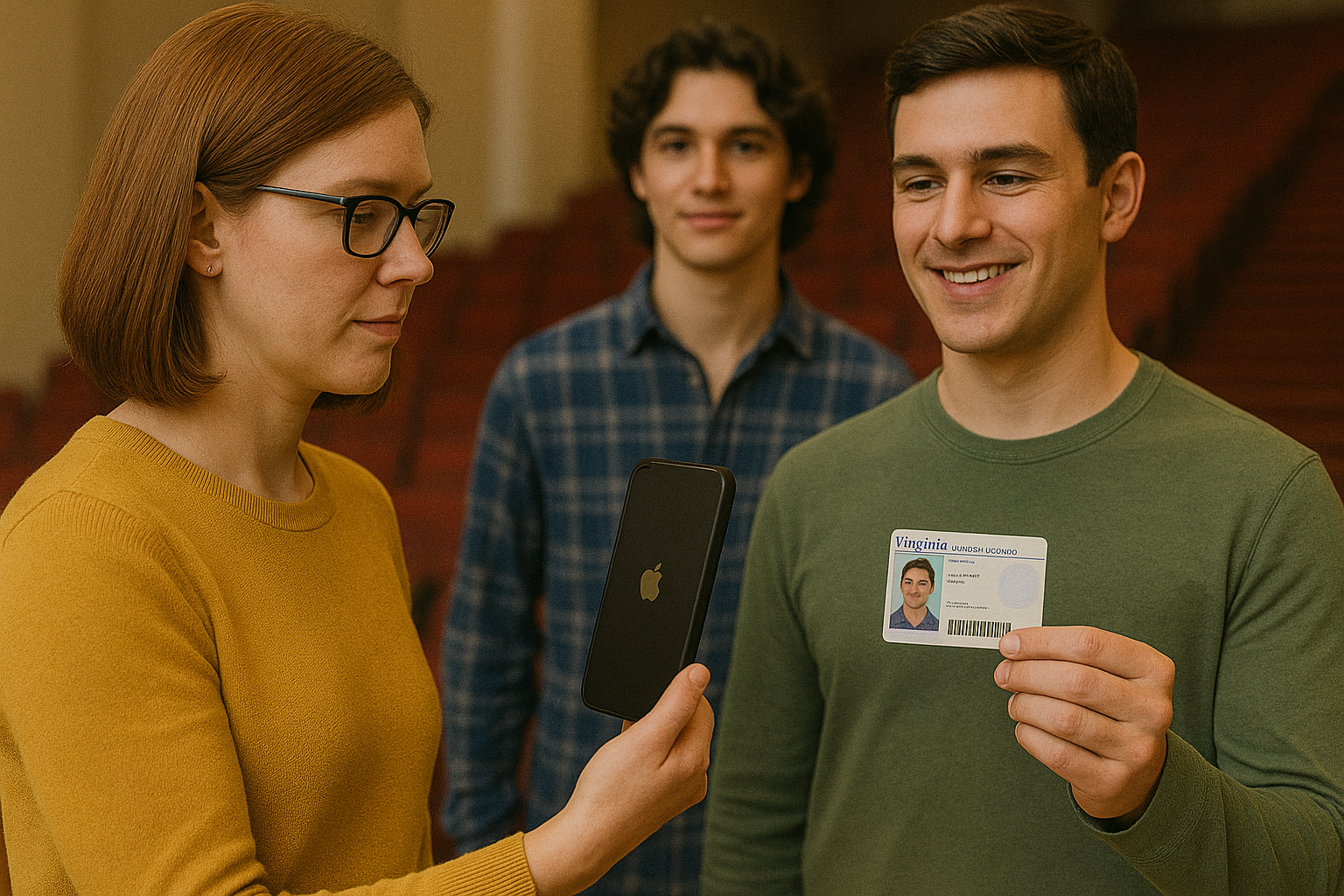
Attendance scanning to CSV: step by step
- Put a unique QR code on every badge or ticket Any QR generator works — the code only needs to carry a unique ID: a registration number, an email address, a member ID. Mail-merge tools, badge printers, and even spreadsheet formulas that build QR image URLs all do this in bulk. (Paper tickets with barcodes work identically — DataScan reads 13 code types.)
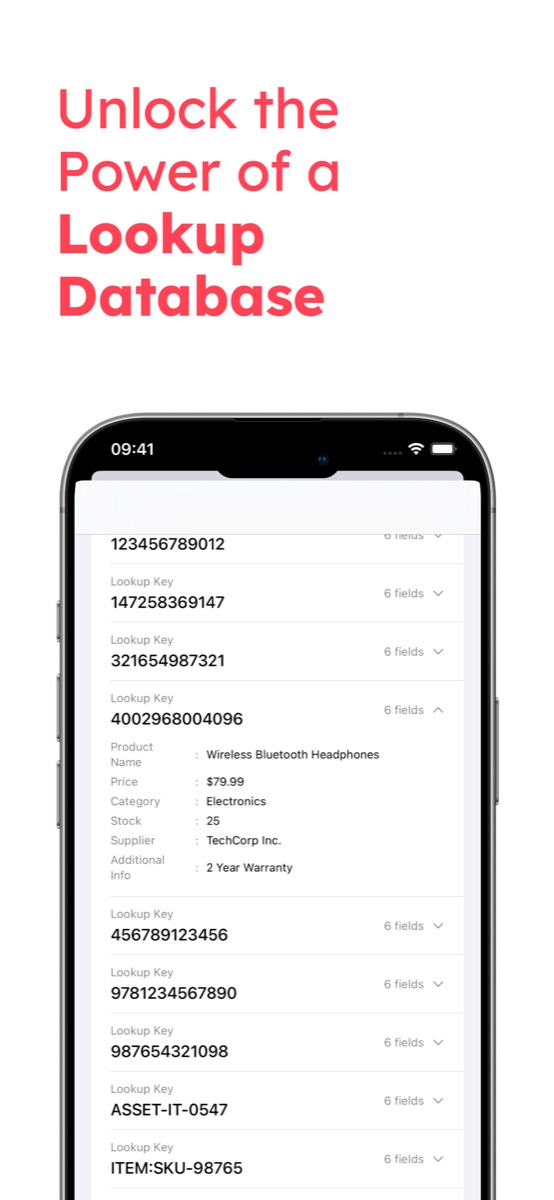
- Import the attendee list into DataScan Export registrations as a CSV — ID first, then the name, then whatever else the door staff should see — and load it into the app's Lookup database. The entire guest list is now on the phone itself, which is why venue connectivity stops mattering.
- Scan badges at the door In Continuous Scan with Enable Cross-Reference switched on, each scan pops up the badge code and the attendee's name — the first column after the ID — and the door person waves the guest through. A code that is not on the list shows no name: the signal for "this badge needs a human conversation," noticed before entry.
- Use Lookup Scan for questions When someone needs a guest's full record, Lookup Scan shows every column for that badge. It records nothing, so keep the door running in Continuous Scan — one timestamped scan per badge as fast as you can aim, with a touch-and-hold pause when the line stalls — and do the full list-matching in the spreadsheet afterwards.
- Export the attendance file Doors closed, export the session as CSV or Excel: one row per scanned badge, each with a timestamp, plus the attendee's fields if Cross-reference with Lookup Data is on. Email it through your own SMTP server, upload it via SFTP, or share the file to any app. For Google Sheets, import the CSV as described in the Google Sheets guide.
- Reconcile attendance against registrations In the sheet,
=COUNTIF(scans, id)against the registration list marks who showed and who did not. That single column is the no-show list for follow-up, the headcount for the caterer's invoice, and — for training sessions — an attendance record with scan times.
Before doors open: the ten-minute dry run
Do a rehearsal the day before, end to end. Print or display three test badges — one valid, one deliberately not on the list, one duplicate — and run them through the exact flow: the valid badge should show its name, the stranger should show no name, and the duplicate should appear twice in the export. Then export the test session and open it in your sheet, so the first time you see the file format is not at midnight after the event. While you are at it, check the physical realities: glossy badge laminate glares under entrance lighting (tilt, don't fight it), and QR codes on phone screens scan best at full brightness.
Door tips
- Switch on Prevent Duplicate Scans. It ignores a badge held in front of the camera twice in a row. A badge shown again later is still recorded, so find repeats in the export with COUNTIF.
- One phone per door, one file per door. main-entrance 2026-07-10 and side-door 2026-07-10 merge cleanly in the sheet and tell you which entrance carried the load.
- Brief the door staff on the no-match script. The missing name is the cue; the human's job is the friendly "let me just check you in manually" — decide before doors open where manual additions get written down.
- Timestamps are the bonus data. Arrival-time distribution tells you when to staff the door next time — free insight from data you captured anyway.
Example workflows: the event check-in example shows this setup at the door, and the university attendance tracking example shows the recurring version — the same roster scanned lecture after lecture, exported per lecture.
When a dedicated check-in platform is the better tool
Honesty about the fit: dedicated check-in tools (OneTap and similar) and full event platforms exist for good reasons — online registration and payment, on-site badge printing, multi-session agendas, kiosk self-check-in, live dashboards across many doors. If you need those, pay for them. The scanning-app approach wins the long tail underneath: rosters that already live in spreadsheets, venues with unreliable Wi-Fi (see the offline scanning guide), recurring classes and member events, and any check-in where the deliverable is an attendance CSV rather than a dashboard. The same Lookup workflow generalizes well beyond events — the database verification guide covers it — and the DataScan overview shows all five modes. The 7-day free trial includes everything, so a dry run with tomorrow's guest list costs nothing.
Frequently Asked Questions
Yes — that is the strongest reason to run check-in this way. The attendee list is imported to the phone beforehand and every scan is stored locally, so verification and capture work with no connectivity at all. Basement venues, tents, and overloaded conference Wi-Fi change nothing. You export the attendance file whenever you next have a connection.
The setting Prevent Duplicate Scans ignores the same badge scanned twice in a row, which catches an accidental double scan. It does not catch a badge shown again later, so at the door that is a human check. Every scan is timestamped, so a COUNTIF on the exported badge column shows any code that came through more than once. For multi-door events, each phone exports its own file; merge them before counting.
Yes. Export the session as CSV and import it into Google Sheets (File, Import, Append). The scan-to-Google-Sheets guide covers the steps in detail.
No — it replaces the door scanning and attendance-report part, not registration. If you need online ticket sales, payment, badge printing, and session-level agendas, a dedicated event platform earns its fees. If registrations already live in a spreadsheet and what you want at the end is also a spreadsheet, a scanning app is the honest-size tool.