Barcode-Scans nach SAP oder QuickBooks bringen (CSV-Import)
Ein einfacher Weg, mobile Barcode-Scans nach SAP oder QuickBooks zu bringen, ist eine Datei: Mit einer Smartphone-App scannen, eine CSV- oder Excel-Datei so exportieren, wie es die Importroutine Ihres Systems erwartet, und die Routine die Buchung erledigen lassen. DataScan erfasst die Scans, formt die Datei und lädt sie mit einem Tipp auf Ihren SFTP-Server hoch — ohne Scanning-Lizenzen, ohne Middleware-Abonnement, ohne API-Projekt.
Mobiles Scannen ohne Integrationsprojekt
Mobiles Scannen, das direkt in SAP oder QuickBooks bucht, bedeutet meist ein Zusatzprodukt, eigene Geräte und ein Integrationsprojekt. Für ein Lager mit einer wöchentlichen Zählung oder ein Geschäft mit einigen Paletten Wareneingang pro Tag ist das oft mehr, als die Aufgabe braucht.
Ihr System weiß längst, wie man eine Datei importiert. SAP hat seit Jahrzehnten Batch-Input- und Datei-Upload-Routinen; QuickBooks importiert Excel und CSV von Haus aus. Das einzig fehlende Stück ist die genaue Erfassung der Scans in der Fläche und die Zustellung einer sauberen Datei — und das ist ein Problem der Smartphone-App, nicht des ERP.

Vom Scan über CSV nach SAP oder QuickBooks: Schritt für Schritt
- Die von Ihrem System benötigte Datei definieren Bevor Sie die App anfassen, fragen Sie die für den Import verantwortliche Person, welche Spalten, Überschriften, Trennzeichen und Datumsformate erwartet werden. Ein SAP-Upload für die körperliche Inventur will vielleicht Material, Menge, Zähldatum; ein QuickBooks-Artikelimport hat seine eigenen Überschriftennamen. Zehn Minuten mit der richtigen Person sparen Ihnen bei jedem späteren Export Arbeit.
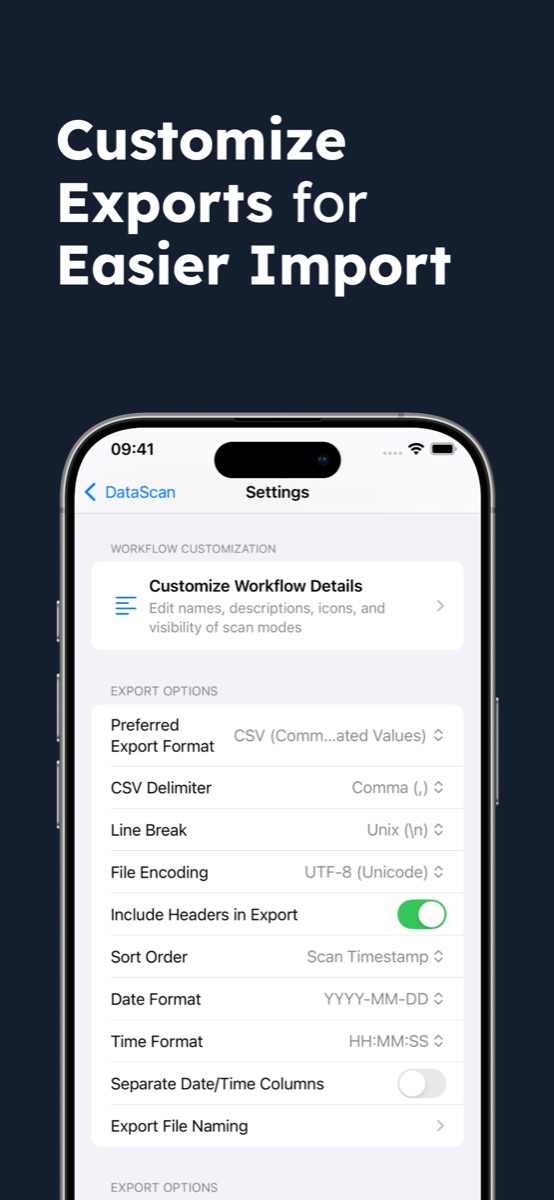
- Den Export in DataScan passend konfigurieren Stellen Sie in den Einstellungen Exportformat (CSV oder Excel), CSV-Trennzeichen (Komma oder Semikolon), Zeilenumbrüche sowie Datums- und Zeitformate ein. Benennen Sie dann die Spaltenüberschriften um, die sich in der App umbenennen lassen: die Barcode-Spalte (in Material, SKU oder das, was die Spezifikation vorgibt), die Mengen- oder Anzahlspalte und im Eins-zu-Viele-Scan die primäre und die sekundäre Spalte. Das ist einmalige Arbeit: Jeder Export hat danach denselben Aufbau.
- Mit dem zur Aufgabe passenden Modus scannen Für Inventurzählungen, die SAP oder eine QuickBooks-Korrektur speisen, nutzen Sie den Einzelwert-Scan — Barcode scannen, gezählte Menge eingeben, eine Zeile pro Artikel. Für einfache Listen (Seriennummern, angenommene Kartons) ist der Kontinuierliche Scan schneller. Wenn Sie zuvor eine Stammliste aus Ihrem System exportieren, prüft der Nachschlage-Scan jeden Barcode während der Arbeit dagegen — siehe den Ratgeber zum Prüfen von Scans gegen eine Produktdatenbank.
- Die Datei zustellen Exportieren Sie die Sitzung und wählen Sie den Weg: Upload per SFTP direkt in einen Serverordner, E-Mail über Ihren eigenen SMTP-Server oder Teilen der Datei mit einer beliebigen App auf dem Smartphone. Jede Sitzung erhält einen eigenen Dateinamen; ein Datums- und Uhrzeitsuffix unter „Export-Dateinamen“ hält die Dateien in der richtigen Reihenfolge.
- Nach SAP oder QuickBooks importieren Führen Sie die Routine aus, die Ihr System bereits besitzt. In SAP ist das typischerweise eine Batch-Input-Mappe oder ein LSMW-artiger Upload für Inventurzählungen — oder schlicht die Übergabe der Datei an das Team, das diese Transaktionen verantwortet. In QuickBooks nutzen Sie den integrierten Excel-/CSV-Import oder fügen die Zeilen in eine Bestandskorrektur ein. So oder so erfolgt die Datenbuchung über den eigenen, unterstützten Mechanismus des Systems.
- Die Buchung prüfen Kontrollieren Sie stichprobenartig einige importierte Datensätze gegen die Sitzung auf dem Smartphone. Zeilenanzahl und Zeitstempel je Scan machen es leicht zu bestätigen, dass die gesamte Datei angekommen ist, und zeigen, wann jeder Artikel gescannt wurde.
SFTP: der stille Automatisierungsgewinn
Betreibt Ihre Organisation irgendeine Integrations-Middleware — oder auch nur einen schlichten geplanten Job —, ist ein überwachter Ordner das klassische Muster: Dateien, die im Ordner auftauchen, werden automatisch validiert und importiert. DataScan lädt eine abgeschlossene Sitzung auf einen SFTP-Server hoch, wenn Sie auf „Auf Server speichern“ tippen, was den Arbeitsablauf auf scannen, „Auf Server speichern“ antippen, fertig reduziert. Das Lager fasst nie einen Computer an. Jede Sitzung erhält einen eigenen Dateinamen; ergänzen Sie unter „Export-Dateinamen“ ein Datums- und Uhrzeitsuffix, damit der Importjob die Dateien der Reihe nach abarbeiten kann.
Das ist zugleich die ehrliche Obergrenze des Ansatzes, klar benannt: Er ist dateibasiert, nicht echtzeitfähig. Scans werden gebucht, wenn die Datei importiert wird, und nicht in dem Augenblick, in dem der Barcode gelesen wird. Für Wareneingangskontrollen, Zählungen, Prüfungen und Korrekturen — also Aufgaben, bei denen ohnehin ein Mensch die Daten sichtet — kostet diese Verzögerung nichts. Wenn jeder Scan innerhalb von Sekunden in SAP landen muss (Fördertechnik-Sortierung, Echtzeit-Kommissionierung), sind dafür die zertifizierten Produkte mit Live-Verbindung da, zu ihren Preisen.
Was Sie Ihrer IT-Abteilung sagen sollten
- Keine Anbieter-Cloud für Scandaten. Scans werden auf dem Gerät gespeichert und laufen ausschließlich über Kanäle, die Sie wählen — Ihren SMTP-Server, Ihren SFTP-Server oder das Share Sheet.
- Keine Konten, keine Werbung. Die App verlangt keine Registrierung und sendet keine Scandaten an uns.
- Funktioniert offline. Das Scannen benötigt überhaupt keine Verbindung; das Netzwerk kommt erst beim Export ins Spiel. Regalgassen und Kellerlager sind kein Problem.
- Nichts greift direkt auf das ERP zu. Der Import läuft über die eigene, unterstützte Routine Ihres Systems, mit den Validierungen, die Ihr Team ohnehin anwendet.
- Gleiche Einrichtung auf jedem Smartphone. Eine Einstellungsdatei überträgt die Konfiguration auf andere Geräte, sodass zehn Smartphones im Wareneingang identische Dateiaufbauten erzeugen.
Tipp zur Feldbenennung: Passen Sie die App dem System an, nie umgekehrt. Setzen Sie die umbenennbaren Spaltenüberschriften von DataScan auf die Feldnamen Ihrer Importspezifikation, nutzen Sie ein eindeutiges Datumsformat wie JJJJ-MM-TT und bevorzugen Sie Semikolon-Trennzeichen, wenn Ihre ERP-Vorlagen aus europäischen Excel-Installationen stammen. Eine Datei, die sich ohne manuelle Eingriffe importieren lässt, ist der ganze Sinn der Sache.
Wie das in der Praxis aussieht
Für Zählungen im Materiallager sieht der Kreislauf so aus: Einzelwert-Scan je Zone, semikolongetrennte CSV mit der Materialnummern-Überschrift, die der SAP-Upload erwartet, SFTP-Upload, Batch-Import — der Beispiel-Workflow zur Teileinventur in der Fertigung zeigt eine verwandte Einrichtung. Dieselbe Dateidisziplin deckt den Wareneingang gegen Bestellungen ab (siehe Wareneingang mit dem Smartphone-Scanner) sowie schlichte Tabellenarbeit — der Ratgeber zum Scannen nach Excel behandelt die Formatdetails, einschließlich der Falle der wissenschaftlichen Notation bei langen numerischen Barcodes.
Weitere Wege, Scannen an SAP oder QuickBooks anzubinden
Der Vollständigkeit halber: SAP-zertifizierte mobile Scanning-Suiten (und SAPs eigene Fiori-Inventur-Apps) buchen Vorgänge live und beherrschen gesteuerte Arbeitsabläufe — das richtige Werkzeug für Betriebe mit hohem Volumen, die Lizenzen pro Gerät und ein Integrationsprojekt rechtfertigen können. Inventur-SaaS mit QuickBooks-Integration ergänzt Live-Synchronisierung und Einkaufsfunktionen gegen eine monatliche Gebühr pro Benutzer. Scanner im Tastaturmodus tippen Barcodes in das jeweils aktive Feld — an einem festen Arbeitsplatz mit geöffnetem ERP-Bildschirm in Ordnung, sie erfassen aber nur nackte Barcodes, ohne Mengen, Zeitstempel oder Dateispur. Der Kreislauf aus Smartphone und CSV liegt in der breiten Mitte: mobile Erfassung mit strukturierten Daten, zum Preis eines App-Abonnements, mit Importmechanik, die Sie bereits besitzen. Beginnen Sie mit der DataScan-Übersicht, um alle fünf Scan-Modi zu sehen — alle Funktionen sind in der 7-tägigen kostenlosen Testphase enthalten, sodass Sie den vollständigen Kreislauf vom Scan bis zum Import prüfen können, bevor Sie etwas ausgeben.
Häufig gestellte Fragen
Nein — und das ist Absicht. DataScan exportiert Dateien (CSV oder Excel), die Ihr System über seine eigene Routine importiert oder aus einem SFTP-Ordner abholt, nachdem Sie die Datei hochgeladen haben. Es gibt keine Live-API-Verbindung, keine Middleware und keine Anbieter-Cloud zwischen Ihren Scans und Ihrem System.
Exportieren Sie die Scan-Sitzung als CSV mit den Spalten, die Ihr SAP-Team vorgibt, und übergeben Sie sie an dessen bestehenden Uploadweg — typischerweise eine Batch-Input-Mappe oder eine LSMW-artige Aufzeichnung für körperliche Inventuren oder eine Z-Transaktion, die Ihr Team ohnehin für Datei-Uploads nutzt. Betreibt Ihre Organisation eine Integrations-Middleware, laden Sie die Datei per SFTP in deren überwachten Ordner hoch, und die Middleware übernimmt von dort.
Ja, über den Tabellenimport. QuickBooks (Online und Desktop) importiert Listen und Vorgänge aus Excel- oder CSV-Dateien. Erfassen Sie Ihren Bestand mit Mengen im Einzelwert-Modus, exportieren Sie die Datei, und Ihre Buchhaltung importiert sie oder fügt sie in eine Bestandskorrektur ein. Die Überschriften der Barcode- und der Mengenspalte können Sie in die Namen umbenennen, die Ihr Import erwartet, und die übrigen Spalten im Importschritt zuordnen.
Das entscheidet Ihre IT-Abteilung; hier sind die Fakten, nach denen sie üblicherweise fragt. DataScan scannt offline, benötigt keine Benutzerkonten und zeigt keine Werbung. Die App sendet keine Scandaten an uns, nur anonymisierte Nutzungsstatistiken und Absturzberichte. Exporte laufen ausschließlich über Kanäle, die Sie wählen — Ihren SMTP-Server, Ihren SFTP-Server oder das Share Sheet.