Складская приёмка со сканером на телефоне: сверка поставок с заказом
Складскую приёмку можно вести телефоном из кармана: импортируйте заказ на закупку в DataScan как список для поиска, сканируйте каждую коробку на доке, чтобы подтвердить её принадлежность к заказу, считайте количества по ходу дела и выгружайте акт приёмки, пригодный для закупщика или ERP. Недопоставки и не те товары выявляются, пока водитель ещё на месте, а не тремя неделями позже во время подсчёта.
Разрыв на приёмке товара
Именно на приёмке выигрывается или проигрывается точность учёта запасов. Если недопоставку проводят в заказанном количестве, каждый последующий подсчёт наследует эту ошибку, а окно для предъявления претензии поставщику тихо закрывается. При этом большинство малых и средних складов до сих пор принимают товар по бумажному заказу: галочки на распечатке, количество, нацарапанное на полях, и последующий сеанс ввода данных, во время которого эти поля прочитают неверно.
Корпоративное решение — WMS с управляемой приёмкой на защищённых терминалах, и оно абсолютно оправданно для складов, принимающих десятки машин в день, но избыточно ниже этого уровня. Средний путь: телефон, который знает состав заказа и сообщает вам, сканирование за сканированием, соответствует ли ему то, что выгружают из машины.

Сканирование на приёмке с телефоном: шаг за шагом
- Получите заказ на закупку в виде CSV Выгрузите строки заказа — штрихкод позиции, описание, заказанное количество — из вашей системы закупок или соберите файл из подтверждения заказа поставщиком. Сохраните её как CSV с запятой в качестве разделителя и штрихкодом в первом столбце — за столом, до прибытия машины.
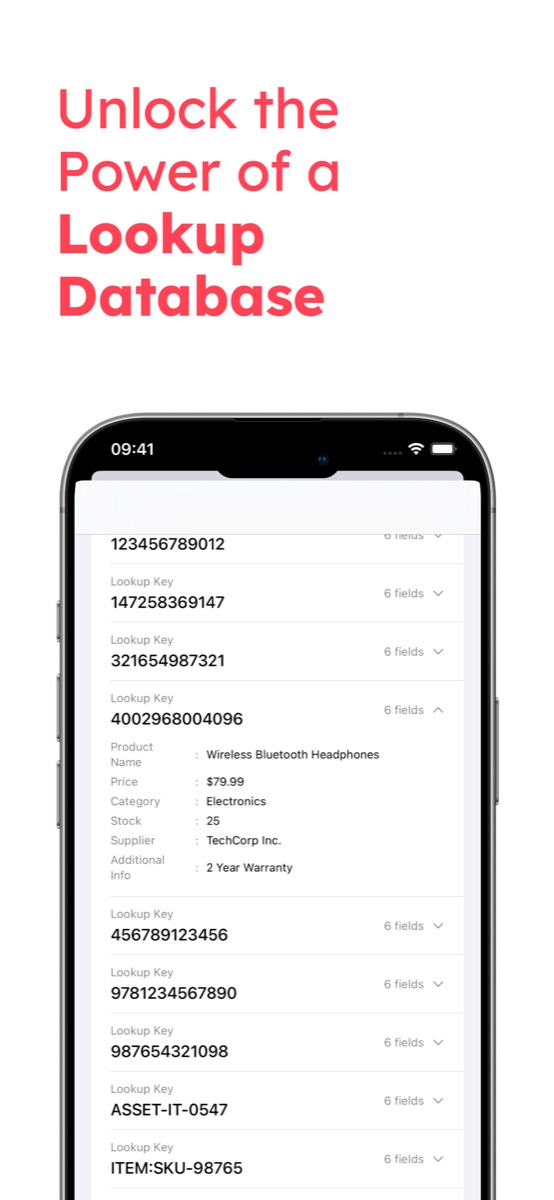
- Импортируйте список в базу поиска DataScan Загрузите файл CSV в приложение. Теперь каждый штрихкод несёт связанные с ним поля — описание, заказанное количество, поставщика, — и весь список находится на телефоне, поэтому он работает и на доке без Wi-Fi.
- Проверяйте коробки в режиме «Сканирование с поиском» По мере разгрузки машины сканируйте каждую коробку или этикетку товара в режиме Сканирование с поиском. При совпадении мгновенно отображаются данные позиции — вы знаете, что это и сколько было заказано, не прикасаясь к бумагам. Неизвестный штрихкод означает, что позиции нет в этом заказе: отложите её сейчас же, пока она не исчезла в стеллажах и не стала загадочным остатком следующего месяца.
- Считайте количества в режиме «Сканирование одного значения» Для самой приёмки запустите сессию Сканирование одного значения, для заказа и выгрузите её под номером заказа (PO-4711 2026-07-10): отсканируйте позицию, посчитайте единицы, введите количество. Там, где что-то не так — смятая коробка, сорванная пломба, не тот вариант товара, — отсканируйте позицию ещё раз в режиме Сканирование нескольких значений и введите заметку; она попадёт в столбец «Примечания» выгрузки этого режима.
- Выгрузите акт приёмки Выгрузите сессию в CSV или Excel: по одной строке на позицию со штрихкодом, принятым количеством и отметкой времени, плюс отдельная выгрузка из режима «Сканирование нескольких значений» с заметками о повреждениях. Отправьте его закупщику письмом через собственный SMTP-сервер, загрузите по SFTP для процедуры импорта вашей ERP или передайте файл напрямую. Заголовки настраиваются один раз, поэтому отчёт приходит в том формате, которого ожидает ваша система.
- Сверьте с заказом на закупку В Excel функция VLOOKUP по штрихкоду поставит принятое количество рядом с заказанным; столбец отклонения и фильтр по ненулевым строкам дадут список исключений. Недопоставки и позиции вне заказа идут в претензию поставщику с отметками времени сканирования, поданную в тот же день.
Частичные поставки, отложенные позиции и заказы на несколько машин
Реальные заказы на закупку редко приезжают одной аккуратной машиной. Схема «одна сессия на заказ» справляется с этим без церемоний: когда приходит первая частичная поставка, её сессия фиксирует то, что действительно прибыло; когда на следующей неделе приезжает остаток, вторая сессия по тому же номеру заказа покрывает остальное. В сверочной таблице суммирование принятых количеств по обоим файлам в разрезе штрихкода даёт нарастающий итог в сравнении с заказанным количеством — незакрытый остаток и есть ваш актуальный список отложенных позиций, а отметки времени показывают, какая поставка что привезла. Не нужно поддерживать статусы и не нужно обновлять систему прямо на доке: файлы просто складываются.
Привычки на приёмке, которые окупают себя
- Одна выгрузка на заказ. Сохраняйте каждую выгрузку под номером заказа — и файлы будет легко сверить, а частичная поставка просто станет второй выгрузкой по тому же заказу.
- Считайте до размещения. Как только коробки оказались в стеллажах, недопоставку уже трудно установить. Отметки времени сканирования показывают, что подсчёт проводился при приёмке.
- Фотографируйте повреждения и отмечайте их в сканировании. Заметка уходит вместе с выгрузкой; фотография, сделанная приложением камеры телефона, остаётся на телефоне как подкрепление претензии.
- Фильтруйте по тем типам этикеток, которые вы принимаете. Ограничение сканирования кодами Code 128 и EAN не даёт камере зацепиться за QR-коды, напечатанные в другом месте коробки.
- Тот же файл, следующий этап. Если принятые товары сразу уходят в контейнеры или на паллеты, руководство по упаковке в режиме Сканирование «один ко многим» продолжает там, где заканчивается приёмка.
Пример рабочего процесса: пример проверки поставок показывает родственную настройку: сканирование входящих поставок и сравнение выгрузки с ожидаемым списком в таблице.
Другие способы организовать приёмку
Честные альтернативы: WMS с управляемой приёмкой на защищённых терминалах проводит поступления вживую, сверяя их с заказом, и подсказывает работникам, куда что разместить, — правильный ответ для крупных предприятий с большими объёмами и несколькими доками, способных обосновать лицензии и интеграционный проект. Процессы с уведомлениями об отгрузке и EDI полностью автоматизируют документооборот, если у обеих сторон совместимые системы. Бумажная приёмка не стоит ничего и незаметно берёт свою дань с каждого последующего подсчёта. Схема с телефоном находится посередине: проверка по заказу и структурированные данные о приёмке по цене подписки на приложение. Акт приёмки попадает в вашу систему в виде файла — руководство по импорту CSV в ERP описывает эту передачу, а руководство по сверке с базой данных подробнее разбирает сам режим «Сканирование с поиском». Впервые в приложении? Начните с обзора DataScan — 7-дневный бесплатный пробный период включает режим «Сканирование с поиском» и все остальные режимы, поэтому вы можете проверить следующую поставку, ничего не заплатив.
Часто задаваемые вопросы
Да. Выгрузите строки заказа в CSV, импортируйте их в базу поиска DataScan и сканируйте каждую коробку на доке — при совпадении сразу видны данные позиции, а неизвестный штрихкод сразу не находит совпадения. Количества попадают в сессию сканирования, а сравнение с заказом в таблице даёт список исключений. WMS автоматизирует тот же цикл, но по ценам WMS.
Ничего не меняется. Импортированный список заказа и все сканирования находятся на телефоне, поэтому проверка и подсчёт полностью работают офлайн. Акт приёмки вы выгрузите, когда вернётесь в зону покрытия, — или покрытие вообще не понадобится, если вы передадите файл локально.
Используйте для повреждённых позиций «Сканирование нескольких значений»: отсканируйте штрихкод и введите заметку — «коробка смята, 3 единицы непригодны к продаже», — которая попадёт в отдельный столбец выгрузки вместе с отметкой времени и при желании с GPS-координатами. Эта выгрузка идёт вместе с актом приёмки, поэтому у претензии есть заметки с первой же минуты.
В виде файла — да. Один раз настройте заголовки экспорта под спецификацию импорта вашей ERP, затем отправляйте файл письмом или загружайте его по SFTP в папку, которую отслеживает ваша процедура импорта. Это файловая передача, а не живое подключение — что вполне подходит для проводок прихода, которые человек и так просматривает. Подробности — в руководстве по импорту CSV в ERP.