Use Your iPhone as a Barcode Scanner for Inventory
Yes — an iPhone can replace a dedicated handheld barcode scanner for most inventory work. With a business scanning app like DataScan, the camera reads 13 barcode types, captures quantities and notes, works fully offline, and exports structured CSV or Excel files to whatever system you already run. Whether it should replace a handheld depends on how many hours a day you scan, and this guide is honest about that line.
The question behind the question: do you need a dedicated scanner?
Dedicated inventory hardware is built for enterprises: rugged handhelds come with charging cradles, device management and, for many bundled systems, a software subscription. That is easy to justify for a distribution center scanning eight hours a day. It is harder to justify for a shop, workshop, lab, or small warehouse that counts stock a few hours a week.
Meanwhile the phone in your pocket already has a camera, a screen for reviewing data, and a network connection for delivering files. The missing piece is software that treats scanning as data capture rather than a party trick — which is exactly the gap a purpose-built app fills.
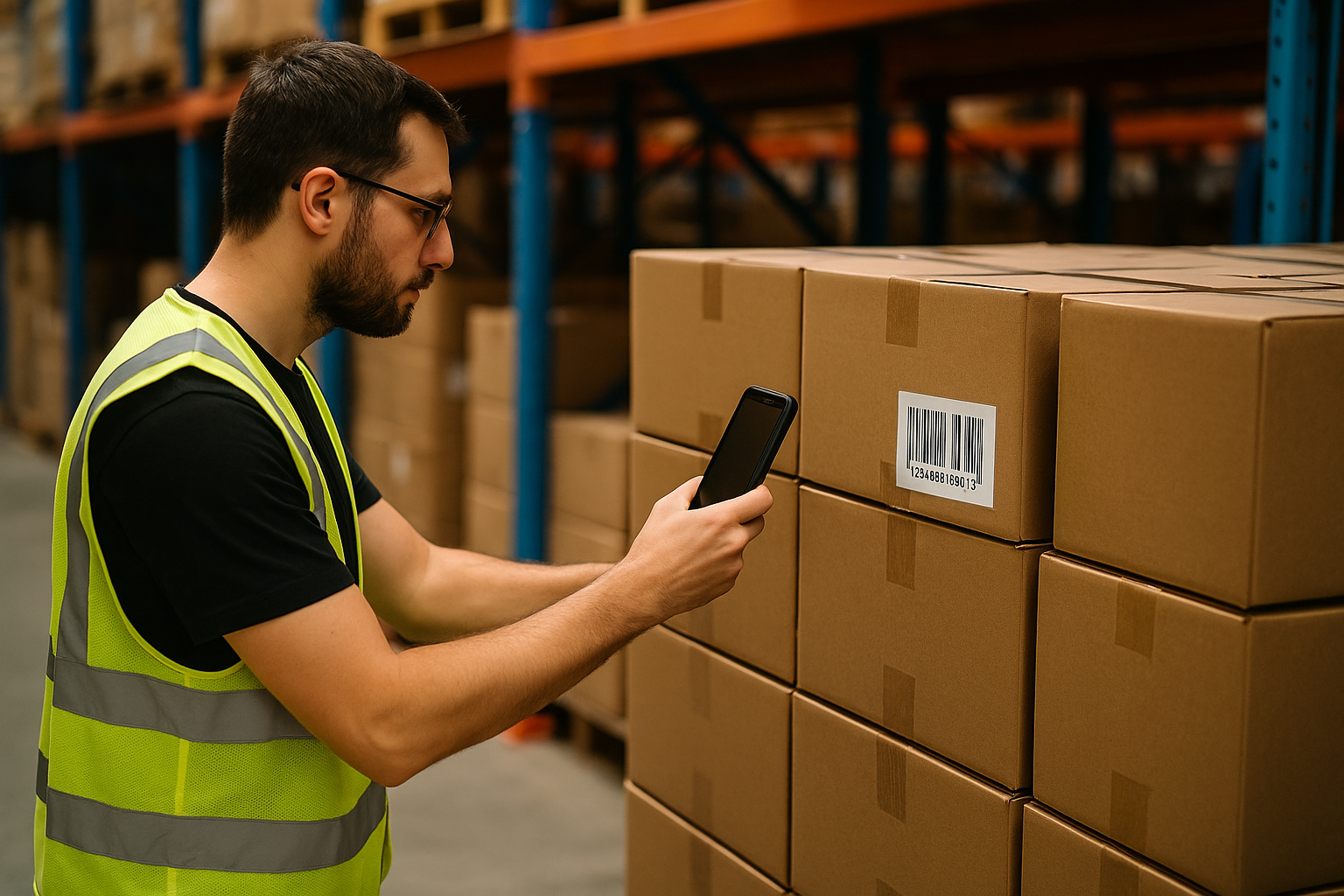
Camera vs. laser scanner: the honest comparison
Where the dedicated handheld genuinely wins:
- All-day ergonomics. A physical trigger and pistol grip beat tapping a screen for thousands of scans per shift.
- Abuse tolerance. Rugged devices shrug off concrete floors and freezer aisles.
- Long-range engines. Specialized scanners read pallet labels from several meters away.
Where the phone camera wins:
- No extra hardware. A subscription app on a phone you already own.
- Symbology breadth. 13 barcode types including 2D codes (QR, Data Matrix, Aztec, PDF417).
- Data capture, not just decoding. Quantities, multi-line notes, GPS coordinates, and item-to-container links captured at the point of scan.
- Structured export. A file with named columns and timestamps, instead of raw keystrokes fired into whatever window has focus.
- Zero rollout friction. Everyone on the team already carries one and knows how to use it.
Rule of thumb: if scanning is someone's full-time job, buy them a handheld. If scanning is a task inside someone's job — counts, receiving, audits, inspections — the iPhone plus a good app is quick to set up and needs no extra hardware.
Five scan modes: match the tool to the inventory job
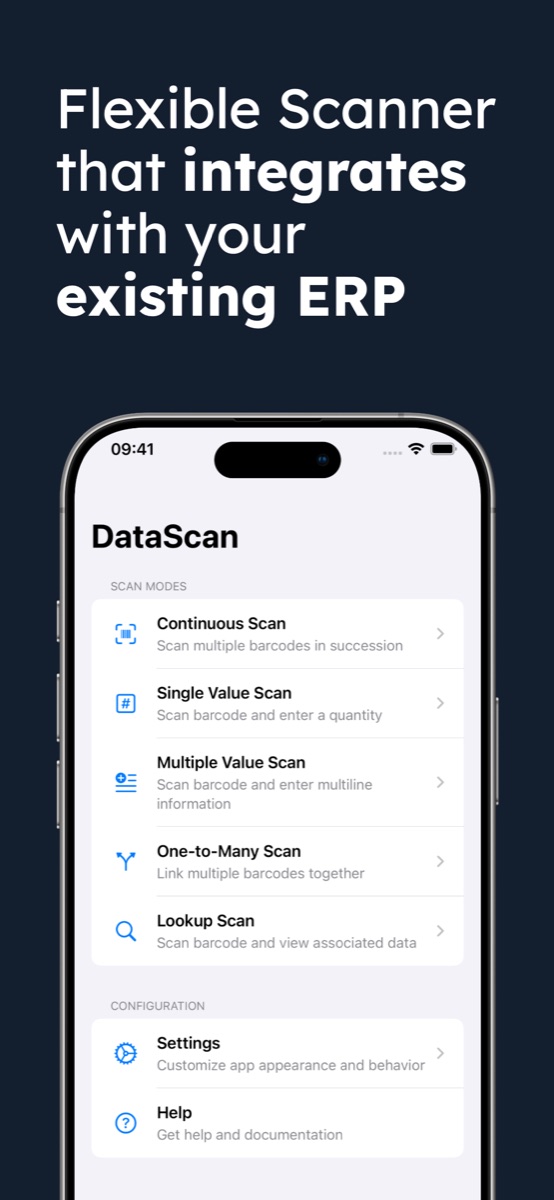
Inventory work comes in several shapes, which is why DataScan has five distinct modes:
- Continuous Scan — rapid counting with a touch-and-hold pause; ideal for working down a shelf or rack.
- Single Value Scan — scan an item, enter a quantity; the backbone of stock takes and cycle counts.
- Multiple Value Scan — attach notes and GPS location to each scan; built for field inspections and condition audits.
- One-to-Many Scan — scan a container, then the items going into it; packing and pallet building without paperwork.
- Lookup Scan — import your product database and verify any barcode against it on the spot.
How to set up your iPhone as an inventory scanner
- Install a business scanning app Install DataScan from the App Store — or Google Play for team members on Android. The 7-day free trial includes every feature, so run a real count before deciding.
- Choose the scan mode that matches the job Continuous for rapid counting, Single Value for quantities, Multiple Value for notes and GPS, One-to-Many for packing, Lookup for verification against an imported product list.
- Configure the export once Set the export format (CSV or Excel), rename column headers to match your spreadsheet or ERP import template, and pick date formats. Do this once; every export after that needs no cleanup.
- Scan your inventory Point the camera at each label. Scans store locally with timestamps and work fully offline — racking, basements, and dead zones included.
- Export to your existing system Email the file through your own SMTP server, upload it via FTP/SFTP, or share it to any app. Then import it into Excel, Google Sheets, or your ERP. The full walkthrough is in the scan-to-Excel guide.
What you need instead of dedicated hardware
The phone route needs a DataScan subscription — after a 7-day free trial with everything unlocked — on devices you already own, and a settings file copies the configuration to every other phone, so all of them export the same columns. No new hardware to buy, charge, lose, or replace. The retail cycle counting example shows how ongoing counts with phones can be set up without buying a single scanner.
Rolling it out to a team
Because everyone already knows how to use a phone, rollout needs little training. Give each person a zone, let each device scan its own sessions, and have everyone export their own file — the files then merge in a spreadsheet in one paste per person. If your branding or workflow needs are stricter, the interface can be customized and the settings file shared to every device, so a seasonal helper sees exactly the same screens as the warehouse lead. For a full parallel-counting playbook, see the stocktake guide.
Where a phone is the wrong tool
Credibility requires saying it plainly: if your operation scans thousands of items per worker per day, buy purpose-built hardware — ergonomics compound. If you need certified freezer-rated or intrinsically safe devices, the phone is disqualified on environment alone. And if your workflow demands live, per-scan writes into a central WMS database, DataScan's deliberately file-based model (scan, then export CSV/Excel) is not that — it gives up real-time writes in exchange for zero infrastructure and full offline capability. For everyone else, start with the phone you already carry.
Frequently Asked Questions
For counts measured in hours per week, yes: the camera reads the label, and the app adds quantities, notes and a structured export. Over an 8-hour shift of continuous scanning, a dedicated handheld still wins on ergonomics: physical trigger, no screen taps, rugged casing.
With DataScan an iPhone reads 13 symbologies: QR, Code 128, Code 39, Code 93, EAN-8, EAN-13, UPC-A, UPC-E, PDF417, Codabar, ITF, Aztec, and Data Matrix — covering retail products, logistics labels, and asset tags.
Yes. DataScan stores every scan locally on the device, so you can count a basement stockroom or a site with no coverage and export the data later when you are back online.
File-based export: the app produces a CSV or Excel file and delivers it by email, FTP/SFTP, or the share sheet. You then import that file into Excel, Google Sheets, SAP, QuickBooks, or any system that accepts CSV. There is no live sync — which also means nothing about your inventory sits on someone else's cloud.