Kako provesti inventuru pomoću iPhonea
Cijelu inventuru (godišnji fizički popis zaliha) možete provesti iPhoneima i Android mobitelima koje vaš tim već nosi. Metoda: podijelite prostor na zone, dajte svakom popisivaču DataScan s identičnim postavkama izvoza, prebrojite svaku zonu Skeniranjem jedne vrijednosti, zatim spojite datoteke svih popisivača u jednu tablicu i usporedite popisano stanje s knjigovodstvenim. Bez iznajmljenog hardvera za skeniranje, bez vanjske službe za brojanje.
Problem inventure: jedan dan, svi na poslu, bez prostora za pogreške
Inventura (fizički popis zaliha, brojanje zaliha, godišnji popis: naziv se razlikuje od tvrtke do tvrtke) sažima godinu dana vođenja evidencije u jedan dan pod velikim pritiskom. Obje tradicionalne varijante bole: podloge za pisanje znače drugi puni krug pretipkavanja rukopisa u tablicu, a iznajmljeni terminali za skeniranje znače trošak, obuku večer prije i hardver koji nitko nije koristio od prošle godine. U međuvremenu svaki popisivač u vašem timu već nosi mobitel koji može skenirati barkodove.
Mobiteli nisu teži dio inventure. Teža je koordinacija, i zato se većina ovog vodiča bavi pripremom i spajanjem, a ne skeniranjem.
Inventura na kraju godine: sve prebrojati jednom
U Njemačkoj § 240 HGB obvezuje trgovce (Kaufleute) da na kraju svake poslovne godine sastave popis imovine. U njegovu klasičnom obliku, inventuri na određeni dan (Stichtagsinventur), svaki se artikl fizički prebroji jednom, na datum bilance ili blizu njega: za mnoge tvrtke 31. prosinca. Vrijedi li za vas taj ili neki drugi oblik i koje zapise morate čuvati, pitanje je za vašeg poreznog savjetnika. Za samo brojanje pomažu tri navike: svaka polica pripada točno jednoj zoni, tijekom brojanja ništa ne ulazi ni ne izlazi, a svaka datoteka izvoza se čuva.
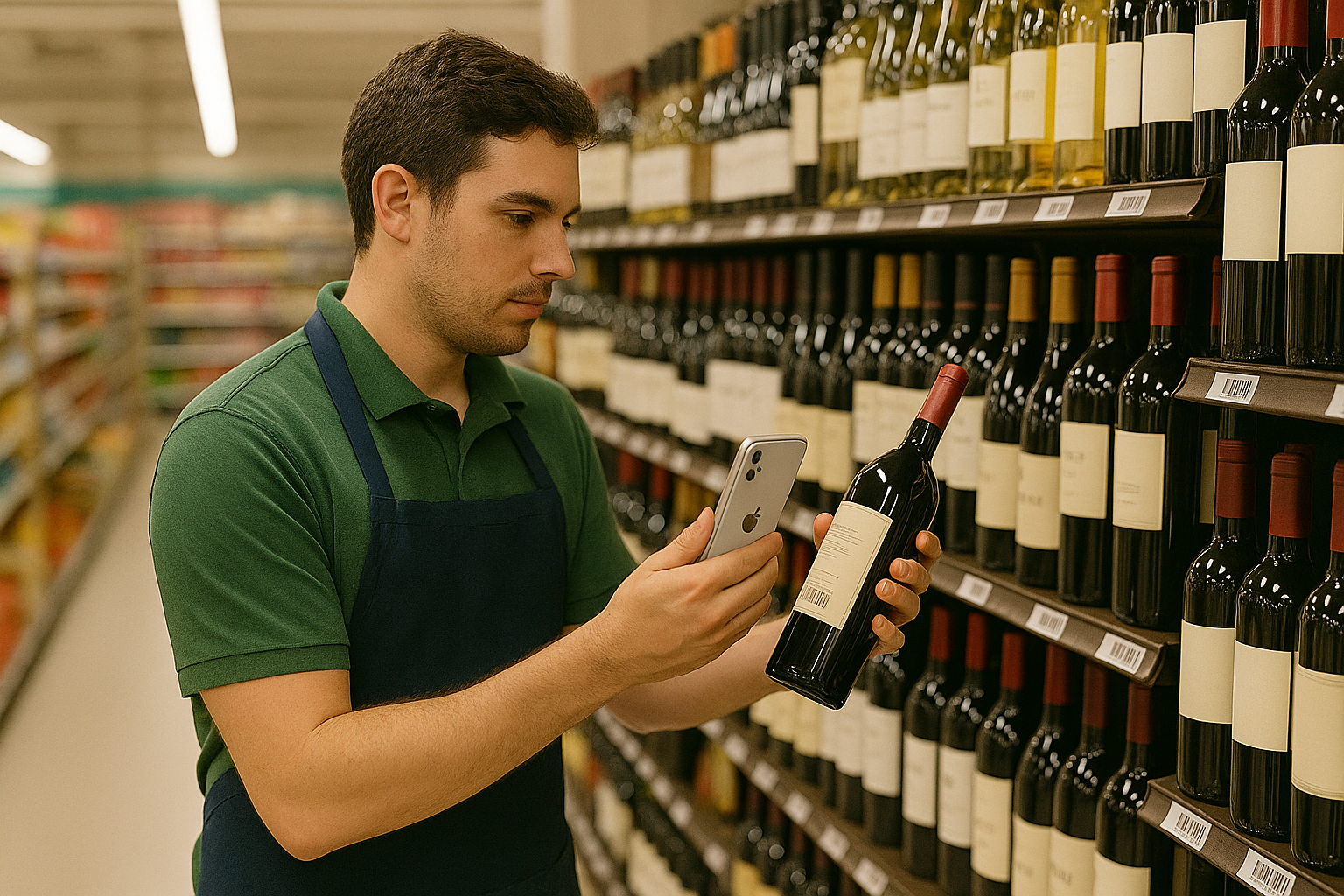
Prije dana brojanja: priprema koja odlučuje ishod
- Zaustavite kretanje robe. Brojite izvan radnog vremena ili zatvorite zaprimanje i otpremu. Roba koja se kreće tijekom brojanja klasičan je izvor neobjašnjivih odstupanja.
- Najprije pospremite. Povrati u pravu kutiju, višak zaliha naprijed, tajanstvene kutije otvorene prije brojanja. Brojanje neuredne police sporije je nego da je pospremite pa prebrojite.
- Označite neoznačeno. Rinfuzna roba i artikli vlastite izrade trebaju interne barkodove ispisane unaprijed ili plan za kratak ručni popis.
- Uputite popisivače. Deset minuta: kako skenirati, kako unositi količine, što učiniti s oštećenom robom, koga pitati. Sama aplikacija ne traži obuku izvan toga.
Inventura iPhoneima, korak po korak
- Podijelite prostor na zone Podijelite trgovinu ili skladište na zone koje jedna osoba može prebrojiti za 30-60 minuta: prolaz, zid s policama, stražnje skladište. Ucrtajte ih u tlocrt i dodijelite im nazive. Svaka polica pripada točno jednoj zoni: zbog praznina i preklapanja artikli se broje nula ili dva puta.
- Pripremite mobitele Svaki popisivač instalira DataScan (na iPhone ili Android) i dobiva iste postavke: format izvoza, zaglavlja stupaca, format datuma. U postavkama Skeniranja jedne vrijednosti uključite Sažmi količine: datoteka svakog popisivača tada već ima jedan redak po barkodu s ukupnim zbrojem. Datoteka postavki kopira konfiguraciju na svaki mobitel, pa je to pitanje minuta, a ne cijele večeri. Besplatno 7-dnevno probno razdoblje dovoljno je za probno brojanje prije pravog.
- Brojite zonu po zonu Skeniranjem jedne vrijednosti Skeniranje jedne vrijednosti je način rada za inventuru: skenirajte barkod proizvoda, prebrojite policu, upišite količinu, sljedeći proizvod. Jedna zona po sesiji skeniranja: izvezite zonu, zatim dodirnite Započni novo skeniranje i odaberite Izbriši prije brojanja sljedeće zone, tako da svaka datoteka sadrži točno jednu zonu (spremite je kao zona-A3 2026-12-31). Svako se skeniranje sprema na mobitel u trenutku kad ga napravite: u podrumu ili hladnjači signal nije potreban.
- Izvezite svaku zonu kao CSV Popisivači koji su završili izvoze svaku zonu kao CSV na jedno sabirno mjesto (ne kao Excel: Excel datoteka aplikacije sprema svaku vrijednost kao tekst, a SUMIF preskače tekstne količine): e-poštom u zajednički poštanski sandučić (putem aplikacije Mail ili vlastitog SMTP poslužitelja), na FTP poslužitelj ili putem izbornika za dijeljenje. Budući da svaki mobitel izvozi vlastitu datoteku, tijekom brojanja nema ovisnosti o poslužitelju ni sinkronizacije koja bi mogla zakazati.
- Spojite datoteke u jedno brojanje Identični stupci čine spajanje mehaničkim: zalijepite svaku datoteku na list Skeniranja besplatnog predloška inventurne liste, a njegova inventurna lista pomoću SUMIF zbraja popisano stanje po EAN-u, i za artikl pronađen u dvije zone. Zaokretna tablica po barkodu obavlja isti posao. Ako iPhonei i Android mobiteli broje jedni uz druge, a vi držite proizvode s UPC kodom, najprije dovedite stupac barkoda na 13 znamenki pomoću
=TEXT(A2,"0000000000000")(programi za tablice s decimalnim zarezom, poput hrvatskog Excela, odvajaju argumente točkom sa zarezom: TEXT(A2;"0000000000000")), tako da svaki proizvod završi u jednom retku. Prije nastavka nasumično provjerite nekoliko redaka po popisivaču. - Usporedite i proknjižite rezultate Usporedite popisano stanje s knjigovodstvenim: inventurna lista prikazuje razliku po artiklu (vodič za cikličko brojanje prikazuje isto pomoću VLOOKUP). Velike razlike ponovno prebrojite isti dan dok je pristup jednostavan, a zatim proknjižite popisano stanje. Koristite JTL-Wawi? Vodič JTL-Wawi: uvoz DataScan CSV datoteke inventure prikazuje uvoz pomoću JTL-Ameise. Sačuvajte svaku izvezenu datoteku i pitajte svog poreznog savjetnika koji su vam zapisi o brojanju potrebni.
Koliko traje inventura mobitelom?
Planirajte prema zonama: skeniranje je brzo, a vrijeme oduzima brojanje robe na polici. Prije dana brojanja izmjerite vrijeme za probnu zonu, a zatim raspodijelite zone među popisivače tako da svi završe otprilike u isto vrijeme. Ostavite vremena poslije za uredski posao (lijepljenje datoteka, inventurnu listu i pregled razlika), koji zamjenjuje krug pretipkavanja kod papirnatog brojanja.
Savjeti za točnost
- Brojite naslijepo: nikada ne pokazujte popisivačima očekivanu količinu; ona privlači rezultate.
- Kritična mjesta neka ponovno prebroji druga osoba. Rijetko se događa da drugi popisivač ponovi istu pogrešku; da je ponovi isti popisivač, često je.
- Pazite na pakiranje i komad. Klasična pogreška inventure: skenira se barkod pakiranja i upiše 1, a ono sadrži 12 komada. Pravilo odredite po kategoriji na uputama prije brojanja.
- Ne dijelite zonu između više ljudi. Dijeljenje prolaza zbog umora stvara dvostruka brojanja na granici; umjesto toga preraspodijelite cijele zone.
Nakon godišnjeg brojanja: isti mobiteli, isti načini rada i djelić truda održavaju evidenciju točnom cijele godine: to je cikličko brojanje, a primjer cikličkog brojanja u maloprodaji prikazuje jedan način postavljanja. Pitajte svog poreznog savjetnika može li kontinuirano brojanje u vašoj tvrtki zamijeniti godišnju inventuru.
Alternative, iskreno odvagnute
Profesionalne službe za inventuru broje brzo i donose vlastiti hardver; za vrlo velike objekte ili kad je vrijeme zaposlenika najoskudniji resurs, vrijede svoje naknade po brojanju, ali ne saznajete ništa o tome odakle dolaze vaše pogreške, a podaci završavaju u njihovu formatu. Iznajmljeni terminali za skeniranje daju vam alat u ruke po cijeni najma i dostave, uz još jedan sustav koji treba svake godine naučiti. Podloge za pisanje su besplatne i spore, a krug prepisivanja dodaje pogreške upravo ondje gdje ste ih htjeli ukloniti. Mobiteli s namjenskom aplikacijom praktična su sredina: hardver u vašem vlasništvu, podaci u vašem formatu i vještine koje vrijede i za provjere pri zaprimanju robe i revizije ostatak godine. Pogledajte što još ista postavka pokriva na početnoj stranici DataScana.
Česta pitanja
Da. Svaki popisivač DataScanom skenira svoju zonu, izveze datoteku, a datoteke se spajaju u tablici. Važna je priprema (jasne zone, identične postavke izvoza na svakom mobitelu, jedan izvoz po zoni), a ne hardver.
Svaki mobitel radi neovisno: vlastite sesije, vlastita datoteka izvoza. Budući da svaki uređaj koristi iste postavke stupaca, spajanje je jedno lijepljenje po popisivaču, a predložak inventurne liste ili zaokretna tablica po barkodu daje ukupno brojanje. Veza između uređaja nije potrebna.
Rinfuzna roba, roba u rasutom stanju i ručno izrađeni artikli trebaju interno rješenje: prije brojanja ispišite za njih vlastite naljepnice s barkodom (odgovara bilo koji pisač naljepnica; DataScan čita Code 128, QR i još 11 vrsta) ili ih prebrojite na kratkom ručnom popisu i na kraju ga dodajte spojenoj tablici.
Da. Svako se skeniranje sprema na mobitel, pa pokrivenost signalom tijekom brojanja nije važna. Popisivači izvoze svoje datoteke kad ponovno imaju signal ili Wi-Fi; u međuvremenu se ništa ne gubi.
Čuvajte ih. Izvozi i spojena inventurna lista pokazuju što je i gdje izbrojeno; koje zapise o brojanju morate čuvati, pitanje je za vašeg poreznog savjetnika.