App for utstyrsinspeksjon: skann merket, loggfør tilstand og posisjon
En app for utstyrsinspeksjon bør la teknikeren skanne maskinens merke, taste inn hva som ble funnet, og gå videre — med tidspunktet registrert automatisk og posisjonen ett trykk unna. DataScans Skanning av flere verdier gjør nøyaktig det: hver skanning fanger aktivastrekkoden, tilstandsnotater i fritekst, et tidsstempel og, med et trykk, GPS-posisjonen, helt offline, og hele runden eksporteres som en CSV-inspeksjonslogg til vedlikeholdsregistrene dine.
Hvorfor inspeksjonsrunder vokser fra papir og skriveplater
Feltinspeksjoner har et dokumentasjonsproblem. Sjekklisten på papir blir fylt ut — som regel — men aktiva-ID-en kopieres for hånd, plasseringen er det teknikeren husker, og arket havner i en perm ingen kan søke i. Når noen spør «når ble denne maskinen sist inspisert, og hva ble funnet?», er svaret en ettermiddag med arkeologi.
Å skanne aktivamerket fikser det svakeste leddet først: ID-en er nøyaktig det som står på maskinen, aldri et ombyttet siffer. Notatene, tidsstemplet og koordinatene knyttes til den skanningen, og eksporten er et regneark du kan filtrere etter aktivum, dato eller funn. Teknikerens jobb går raskere; registeret blir dramatisk bedre.

Feltinspeksjoner med strekkode og GPS: trinn for trinn
- Merk hvert aktivum Hver maskin får en slitesterk etikett med en unik ID. Code 39 og Code 128 er de klassiske valgene for trykte aktivaetiketter; QR og Data Matrix vinner på små, buede eller skitne overflater, fordi feilkorreksjonen deres overlever riper og smuss. Uansett hva du velger, blir merke-ID-en nøkkelen hver framtidige inspeksjon henger på — se veiledningen om skanning av serienumre for detaljer om etikettyper.
- Sett opp Skanning av flere verdier for inspeksjoner Sett opp Skanning av flere verdier i DataScan: du kan gi nytt navn til arbeidsflyten («Inspeksjonsrunde») og til notatfeltets etikett (for eksempel Funn). Engangsoppsett; en innstillingsfil kopierer konfigurasjonen til hver telefon, slik at hver teknikers eksport har de samme kolonnene.
- Gå runden: skann, noter, videre Skann merket, tast inn funnet — «slitasje på hydraulikkslange, overvåkes», «vernebolt mangler, tatt ut av drift», eller rett og slett «OK» — og gå videre til neste maskin. Hver oppføring lagrer aktiva-ID-en, notatene dine, et tidsstempel og, når du trykker på posisjonsknappen, posisjonen. En maskin uten funn blir også skannet, slik at loggen viser at den ble kontrollert.
- Jobb helt offline i felt Byggeplasser, tekniske rom og avsidesliggende lagerplasser har sjelden dekning, og det spiller ingen rolle: alt lagres lokalt på telefonen, og GPS kommer fra satellitter, ikke mobildata. Veiledningen om offline-skanning dekker hva som fungerer uten forbindelse — kortversjonen: alt unntatt været og sendingen av filen.
- Eksporter inspeksjonsloggen Tilbake i dekning — eller tilbake på kontoret — eksporterer du økten som CSV eller Excel: én rad per aktivum med ID, tilstandsnotat, tidsstempel og koordinater i egne kolonner. Send den på e-post via din egen SMTP-server eller last den opp via SFTP til vedlikeholdsmappen.
- Følg opp funnene Filtrer loggen på alt som ikke er «OK», opprett arbeidsordrene, og arkiver eksporten. Samlet utgjør eksportene en datert inspeksjonslogg per aktivum uten ekstra innsats.
Har du ikke noe aktivaregister ennå? Bygg det fra den første runden
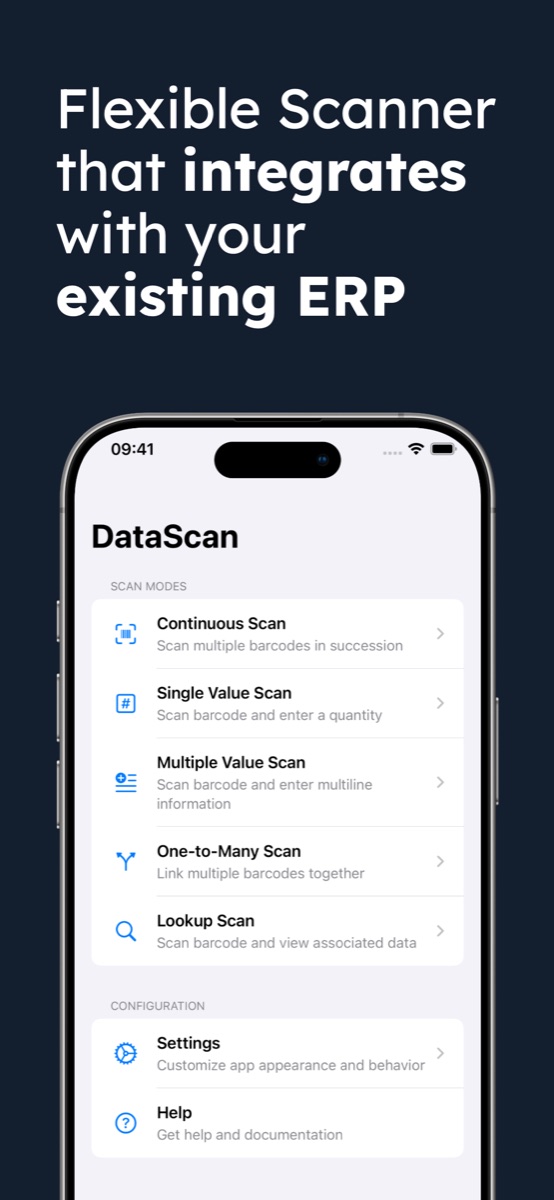
Mange team merker maskiner før de har en ordentlig aktivaliste — og den første inspeksjonsrunden kan lage en. Gå over anlegget i Kontinuerlig skanning og fang hvert merke så raskt du rekker å sikte; med Oppsummer dupliserte skanninger slått på viser eksporten hvert merke én gang med et antall — en oversikt over hva som faktisk finnes der ute, noe som rutinemessig overrasker dem som trodde de hadde oversikten. Fyll den ut i regnearket med modell- og kjøpsopplysninger, så har du både et register verdt å importere tilbake i oppslagsdatabasen og grunnlinjen hver framtidige runde måles mot — aktiva som slutter å dukke opp i inspeksjonsloggene utgjør listen over det som har forsvunnet.
Tips for inspeksjoner
- Standardiser notatvokabularet. Bli enige om en håndfull prefikser — OK, OVERVÅKES, AVVIK, UT AV DRIFT — slik at den eksporterte loggen filtreres rent i stedet for å måtte leses av et menneske.
- Én eksport per runde. Arkiver den under anlegg og dato (plass-nord 2026-07-10); filen blir rundens dokumentasjon, og et oversett aktivum er synlig som en manglende rad.
- La GPS fange opp vandrerne. For utstyr som flytter seg — tilhengere, aggregater, lifter — trykker du for GPS ved hver skanning, så viser koordinatene i de lagrede eksportene dine hvor hver enhet sist ble sett.
- Begrens til din merkesymbologi. Maskiner er dekket av andres strekkoder; filtrerer du til din egen etikettype, ignorerer kameraet andre koder.
Eksempler på arbeidsflyter: eksempelet på utleie av anleggsutstyr viser et beslektet oppsett som knytter maskiner til arbeidsordrer — og eksempelet på verktøysporing viser en lettere variant som knytter verktøy til bilen eller oppdraget de lastes for.
Andre måter å kjøre utstyrsinspeksjoner på
For fullstendighetens skyld: dedikerte plattformer for anleggs- og vedlikeholdsstyring (vedlikeholdssystemer) knytter inspeksjoner til arbeidsordrer, planlegger gjentakende runder og sporer reservedeler — riktig verktøy når vedlikehold er en egen avdeling, priset deretter og som regel per bruker per måned. Skjemaapper håndterer sjekklister godt, men behandler aktiva-ID-en som bare enda et tastet felt, og det er der feilene bor. Papir fungerer fortsatt helt til noen må søke i det. Sløyfen med skanning først dekker den brede midten: verifiserte aktiva-ID-er, strukturerte funn, GPS-posisjoner og en oversikt i regneark — til prisen av et appabonnement. Se DataScan-oversikten for alle fem modusene; den 7-dagers gratis prøveperioden dekker alt, så én runde i morgen er en gratis pilot.
Ofte stilte spørsmål
Skanning av flere verdier kan knytte telefonens GPS-posisjon til hver skanning, ved siden av notatene du taster inn og et tidsstempel. Koordinatene havner i egne kolonner i eksporten, så inspeksjonsloggen viser ikke bare hva du fant, men hvor maskinen var da du fant det. GPS er valgfritt og virker fra satellitter, så det fungerer på anlegg uten mobildekning.
For trykte selvklebende etiketter er Code 39 og Code 128 bransjestandardene og enkle å skaffe. For små, buede eller utsatte overflater er QR-koder og Data Matrix bedre — de kan leses selv når de er delvis skitne eller ripete, takket være innebygd feilkorreksjon. DataScan leser alle disse, og du kan begrense skanningen til din merketype slik at kameraet ignorerer andre koder på maskinen.
Ja, fullstendig. Skannemodusene, notatene dine og GPS-registreringen fungerer alle offline; alt lagres på telefonen. Du trenger bare forbindelse når du eksporterer loggen — eller ikke engang da, hvis du overfører filen lokalt på kontoret.
Ja — importer aktivaregisteret ditt som en CSV-fil i oppslagsdatabasen først, så viser en oppslagsskanning av et hvilket som helst merke feltene umiddelbart: modell, kjøpsdato, siste service, tilordnet anlegg. Selve inspeksjonsnotatene registreres i modusen Skanning av flere verdier; du kan bruke Oppslag til å identifisere og Skanning av flere verdier til å registrere, eller slå på Kryssreferanse med oppslagsdata, slik at feltene fra registeret legges til i eksporten fra Skanning av flere verdier.